
Merging Excel data into separate documents is a topic we have already covered on the blog, but with an approach based on Excel macros, which you can see here, or over here as well
In this new post, we will focus on a software tool that makes our work easier when merging Excel data into separate documents, whether DOCX or PDF, and it even keeps your headers and footers.

Below, we will talk about a tool that lets you create hundreds of separate documents, in the format you want, in 3 simple steps, starting from a Word master document that pulls its information from an Excel table.
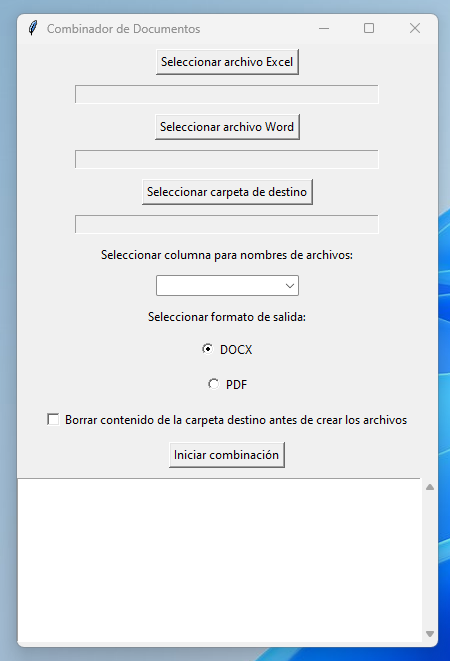
How to merge documents with an Excel list and a Word master file
Merging documents may seem like a complicated task, especially if you are not a programmer or a technical person. However, with the right tools, it is a process anyone can do. In this article, I will guide you step by step so you can merge data from an Excel file with a Word master document, using a simple application.
What do you need?
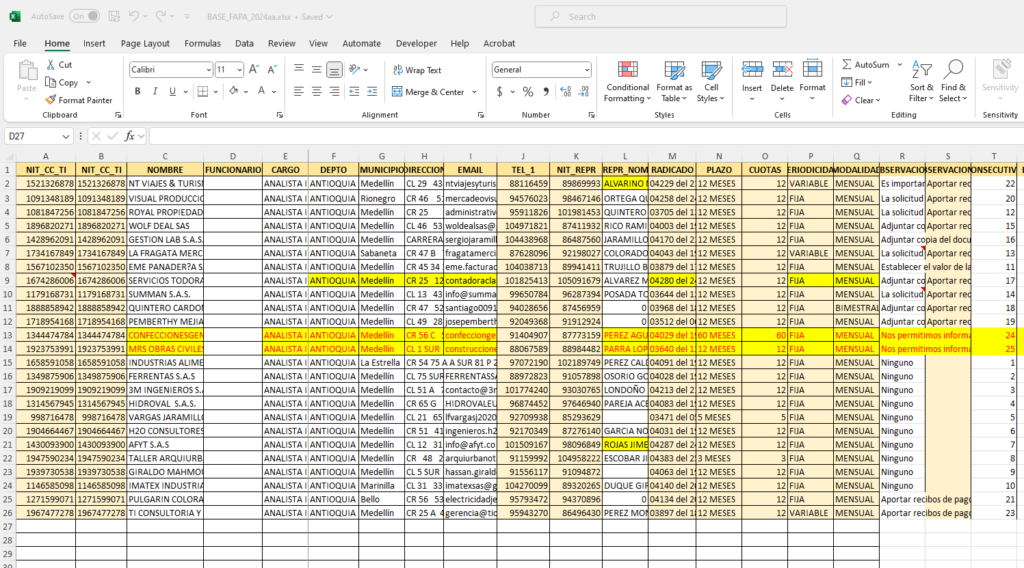
1. An Excel file with the information you want to merge.
Create an Excel file containing the names of the columns you want to merge, and fill in this table as needed.
I suggest not using accented letters or words with the letter ñ in the column header names.
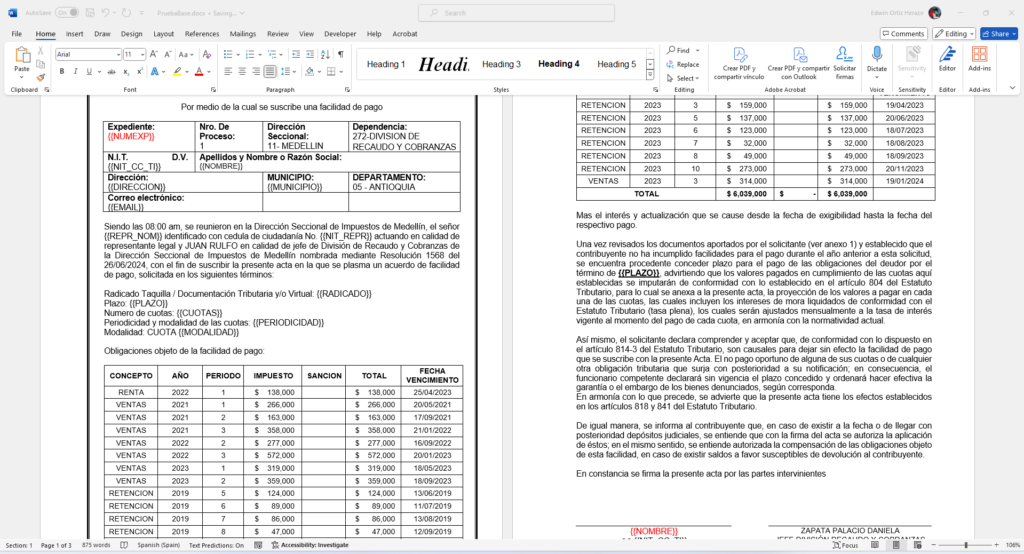
2. A Word master document containing placeholders where the Excel data will be inserted.
Before going any further, it helps to know what a placeholder is. A placeholder is simply a tag that tells the program where to insert the data from each column of the Excel file.
Placeholders are written inside the master document like this (the name of the Excel column between double curly braces):
{{COLUMN}}
In our example, placeholders would look like {{NOMBRE}} (name) or {{DIRECCION}} (address). This way, the program knows where to place each merged value taken from the Excel list.
3. Use the application to merge the documents
Now we are going to use a special application called "Document Combiner" ("Combinador de Documentos" in the Spanish interface). Here is how it works, step by step:
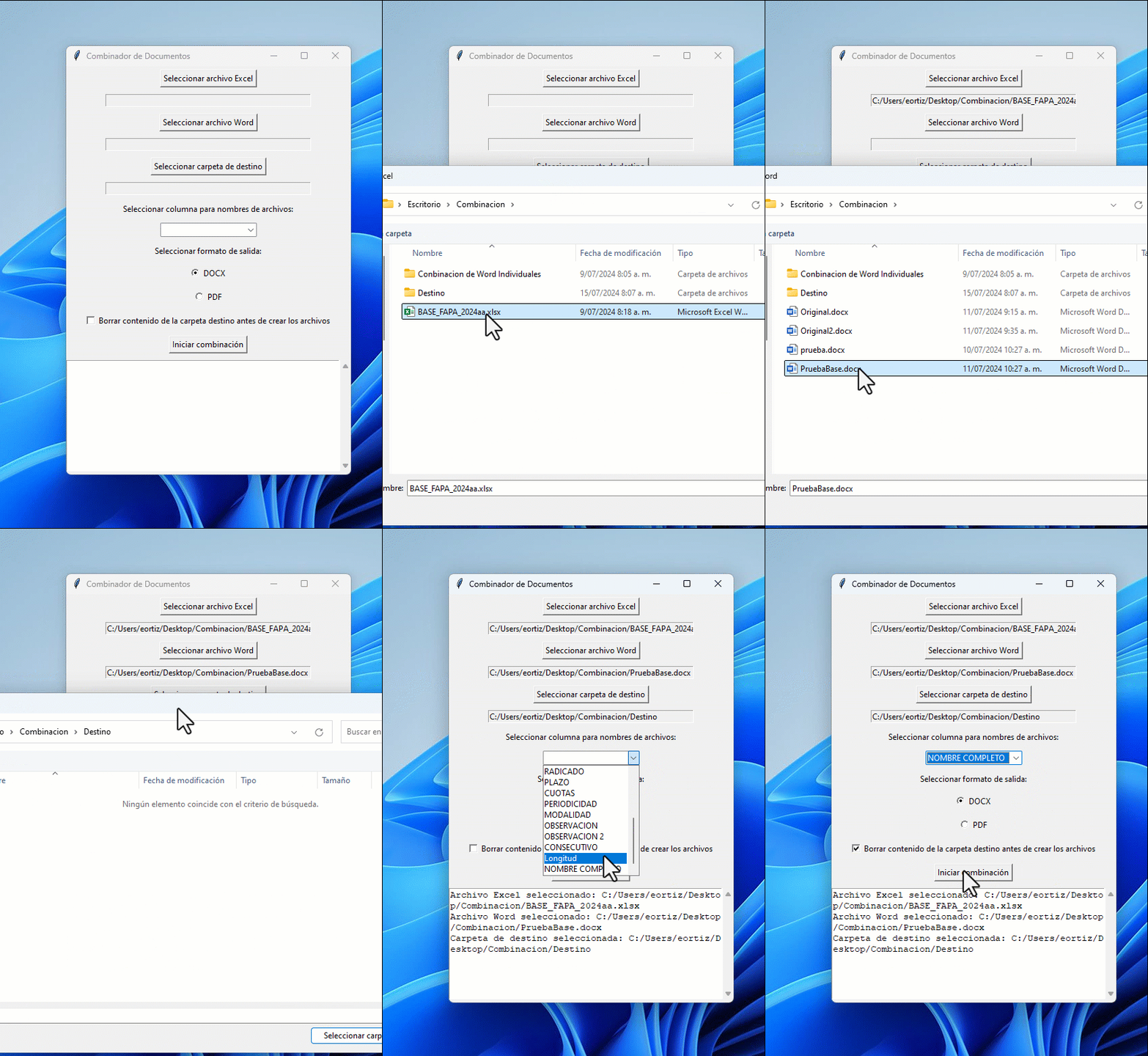
- Select the Excel file: Open the application and select your Excel file. The application will load the available columns.
- Select the Word file: Next, select your Word master document.
- Select the destination folder: Choose the folder where the merged documents will be saved.
- Select the column for file names: Choose the Excel column that will be used to name each merged file.
- Choose the output format: You can save the files as Word documents (DOCX) or as PDF.
- Start the merge: Click "Start merge" ("Iniciar combinación") and the application will process each row of the Excel file, creating an individual document for each one.
This application solves a shortcoming of Word's Mail Merge (Combinar correspondencia in Spanish Word), which in Word only creates one single document with all the information. The "Document Combiner", on the other hand, creates the documents separately and adds extra value, such as the option to merge into separate Word or PDF documents. On top of that, the application uses a master document that includes all the Word features you want in your final merged documents.
Option 1: Download the individual-document Mail Merge application - Free (7-day freemium)
The Premium trial is fully functional and lets you create as many documents as you want, with no restrictions. You can download the 7-day freemium version at the following link: Download the mail merge tool for individual Word and PDF documents

Option 2: Buy a one-year license
I recommend getting the one-year license, so you can merge into separate documents whenever you need to.
If you need more than one license, contact me on WhatsApp and you will get a discount.
App to Merge Excel Data into Separate DOCX and PDF Documents
A software tool that makes our work easier when merging Excel data into separate documents, either DOCX or…
$70

How to start the Excel-to-separate-documents merge application after downloading it
Requirements
The application works without any installation. All you need is the Office suite installed (Word and Excel) and an internet connection


Mail Merge and Save as Separate Documents
Improved version with export to individual PDF files with different names. Saving each record of a mail…
$30

Bulk QR Code Generator to PNG Images
Give your efficiency a technology boost. With "Excel QR Genie" you are investing in accuracy, speed and…
$30

Fixed Asset Inventory Label Generator in Excel with QR Codes and Barcodes
Label Generator with QR codes and barcodes for Excel: transform your fixed asset inventory management with…
$25
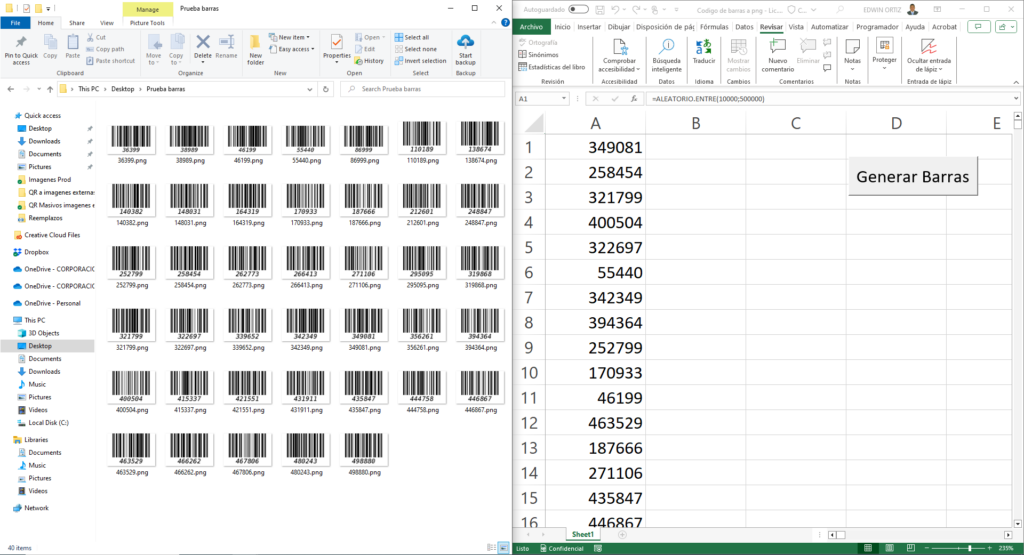
Bulk Barcode Generator to PNG
Bulk Barcode Generator to PNG: transform your inventory with our high-resolution barcode generation tool…
$50
Prefer to have it ready?
More guides in Excel automation for office work