
The bulk QR code generator is a tool that will help you a great deal when you need to produce QR codes in large quantities.
Discover a new way to generate QR codes: straight from Excel! The "Bulk QR Code Generator" turns your spreadsheet into a factory of instant connections. Forget manual processes and dive into automated efficiency. With just a few clicks, the digital world is within your reach.

If you would rather skip all the work, here is the link to buy the template
Product
How to build the macro for the bulk QR code generator
As we saw in the video above, the macro reads a list of codes, serial numbers or whatever you like and turns them into QR codes, which are then saved in a folder chosen by the user.
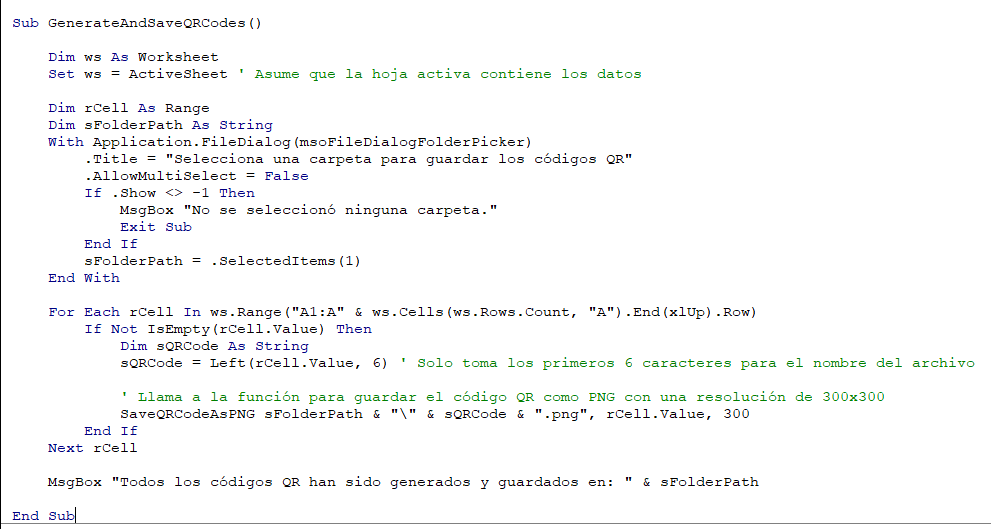
The first thing to look at is the GenerateAndSaveQRCodes macro. This routine is the heart of the whole process, so let's show it first and then break it down.
Start of the subroutine:

This line starts the definition of a subroutine called GenerateAndSaveQRCodes. A subroutine is a block of code that performs a specific task in VBA.
Variable declarations:

Here a variable ws of type Worksheet is declared and set to the worksheet that is active at that moment. The assumption is that this sheet holds the data that will be used to generate the QR codes.
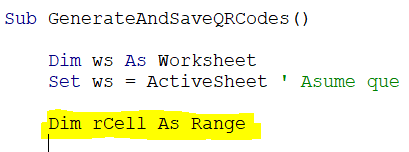
Another variable, rCell, is declared; it will be used to refer to each individual cell within a specified range of the worksheet.
Folder selection
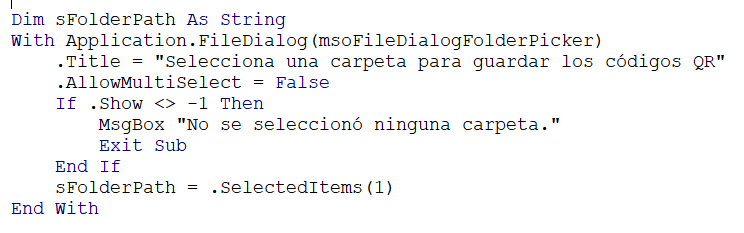
This block of code lets the user choose the folder where the QR codes will be saved. If no folder is selected, an alert message is shown and the subroutine ends.
Loop to generate and save the QR codes

This For Each loop goes through every cell in column A, from A1 down to the last cell with data. For each non-empty cell, it takes the first 6 characters of the cell's value to build a file name for the QR code. It then calls another subroutine, SaveQRCodeAsPNG, which is not defined in this snippet (we will look at it next) and which generates a QR code image and saves it in the selected folder as a PNG file with a resolution of 300x300 pixels.
Before we continue, a couple of recommendations on the topic
How to generate the images in the bulk QR code generator
Here we are going to look at the SaveQRCodeAsPNG function.
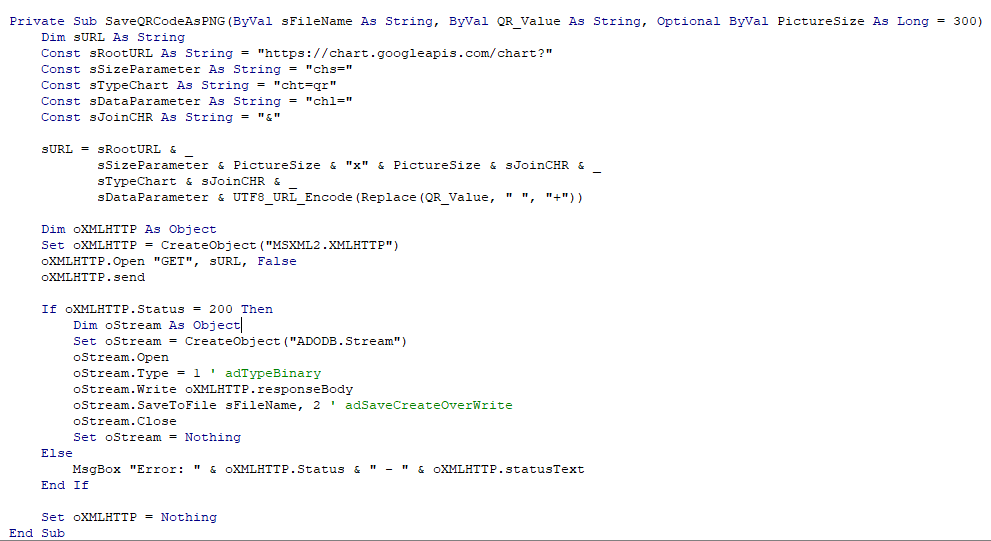
The SaveQRCodeAsPNG function is a VBA procedure designed to generate QR codes and save them as PNG images in a location specified by the user. Here are the most important parts of the code:
Subroutine parameters:
sFileName: path and name of the file where the QR code will be saved.QR_Value: value or text that will be converted into a QR code.PictureSize: size of the QR code image in pixels, with a default value of 300x300.
Building the Google API URL that generates the QR code:
- It uses the Google Chart API to generate QR codes, building a URL with the required parameters such as the size (
chs), the chart type (cht=qr) and the data to encode (chl).
URL encoding:
- The
UTF8_URL_Encodefunction (not shown here) is defined further down and takes care of properly encoding the value so it can be used in the URL, replacing spaces with the+sign.
HTTP request:
- It creates an
XMLHTTPobject to send an HTTP GET request to the Google Chart service URL. - If the request succeeds (
oXMLHTTP.Status = 200), it goes on to read the response.
Saving the file:
- It uses an
ADODB.Streamobject to write the binary response (the QR code image) to a file with the specified name and path (sFileName). - The file is saved, overwriting any existing file with the same name.
Error handling:
- If the HTTP status is not 200, it shows an error message with the status code and a description.
The function is declared as Private, which means it can only be called from inside the module where it is defined.
This code is essential to how the macro works, because it turns the data into QR codes and saves them as images on the user's file system, making them easy to use in other documents, printouts or web applications.
Encoding the QR data correctly
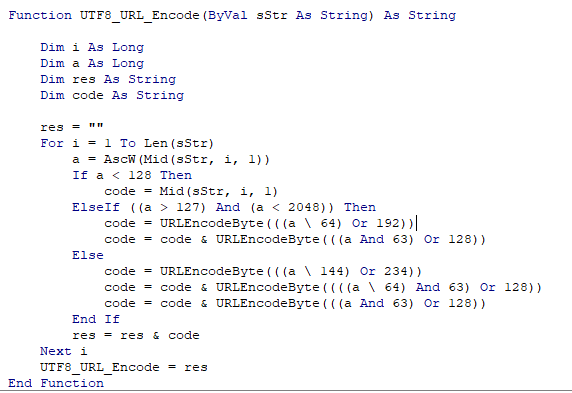
The UTF8_URL_Encode function is responsible for converting a text string (sStr) into a URL-safe format using UTF-8 encoding. The relevant parts of this function are described below:
Variables:
i: index used to iterate over each character in the string.a: stores the numeric value of the Unicode character code.res: resulting string that accumulates the URL-encoded version ofsStr.code: temporary string that stores the encoded version of each individual character.
Encoding process:
- Iterating over each character: the
Forloop goes through each character of the input string. - Getting the Unicode value: it uses
AscWto get the Unicode value of each character.AscWreturns the Unicode character value and can handle characters outside the standard ASCII range (0-127). - Deciding whether encoding is needed:
- If the value of
ais less than 128, that is, a standard ASCII character, it is left as it is. - If the value is between 128 and 2047, the character falls within the range of extended Latin characters or other alphabets such as Greek or Cyrillic, and needs a two-byte UTF-8 encoding.
- For higher values (characters with higher Unicode code points), three bytes are needed for the UTF-8 encoding.
- If the value of
- Character encoding: bitwise operations are performed and then the
URLEncodeBytefunction is called to convert each byte into its hexadecimal representation preceded by a percent sign (%), which is the format expected for URL encoding. - Concatenating the encoded string:
resaccumulates the encoded result of each character.
At the end of the function, UTF8_URL_Encode returns the complete string URL-encoded with UTF-8, which ensures that any character, whatever its linguistic or symbolic origin, can be transmitted correctly through URLs in web applications and APIs.
A few secrets of the QR code generator
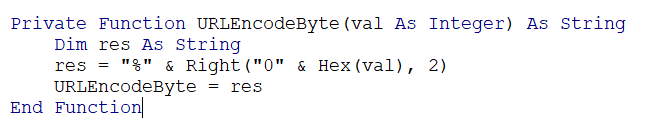
The URLEncodeByte function plays an essential role in URL-encoding characters so they can be used in URLs, especially characters that are not standard ASCII. In the Excel macro you are using to generate QR codes, this function is a component of the UTF8_URL_Encode function. Here is how it works and how it connects with the rest of the code:
Purpose of URLEncodeByte:
- This function takes an integer value
valthat represents a byte (a number between 0 and 255) and converts it into its hexadecimal representation with a "%" prefix. This is because, in URL encoding, non-ASCII or reserved characters must be replaced by a percent sign followed by two hexadecimal digits representing the character's byte value.
How it works:
- The function takes the integer value
valand uses theHexfunction to convert it into a string representing its hexadecimal equivalent. Hex(val)returns a hexadecimal string without leading zeros, so if the hexadecimal value is less than 16 (for example,Efor the number 14), a zero is added at the start to make sure the result has two digits.Right("0" & Hex(val), 2)ensures the result always has two characters, which is required for URL-encoding individual characters.- Finally, a "%" is added in front of these two characters, which is the syntax required for URL encoding.
Connection with other functions:
URLEncodeByteis called byUTF8_URL_Encode, which is responsible for fully encoding a text string so it can be used safely in URLs.- In the UTF-8 encoding process, which may require one, two or three bytes depending on the original character,
URLEncodeByteis used to convert each of those bytes into its percent-encoded format, which is then concatenated to form the final URL-encoded string.
Practical use:
- When the macro builds a URL to create a QR code using the Google Chart API, any character that is not standard or URL-safe has to be encoded this way.
URLEncodeBytemakes sure each byte is encoded correctly so it can be sent in the request URL to the API.
Prefer to have it ready?
More guides in Excel automation for office work