
Mail merging and saving the results as separate documents is a feature we would all love to have in Microsoft Word when we use Mail Merge (Combinar correspondencia in Spanish Word), but unfortunately Word only lets you merge into separate documents if, and only if, they are sent by email as a mass mailing.
To mail merge and save into separate documents, we need to use the macro language, VBA (Visual Basic for Applications), to create a routine that takes the information from a master document and turns it into separate Word documents.
What do we need to do to split one document into several separate ones?
The first thing you need for this process is to know how to run a mail merge in Word and get a merged document from an Excel list and a Word document. For that, here is the following video.
Step 2: have the merged document ready and saved correctly
This step matters, because how we save the document determines whether the next steps give us excellent results. I recommend saving that document either as .doc or as .docm (macro-enabled), but not as .docx. The reason is that we are going to include a macro in the document, and the .docx format does not allow you to save macros. In this example I will name it “DOCUMENTOS GENERADOS” (generated documents).
If you want to see the process in detail, I recommend watching the following video, which shows the complete procedure. After that, we will move on to getting the macro.

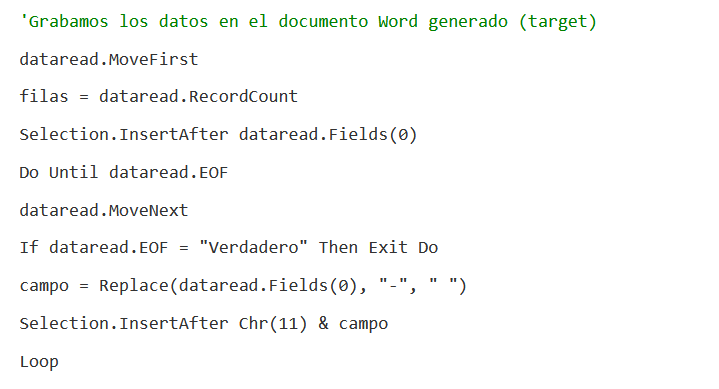
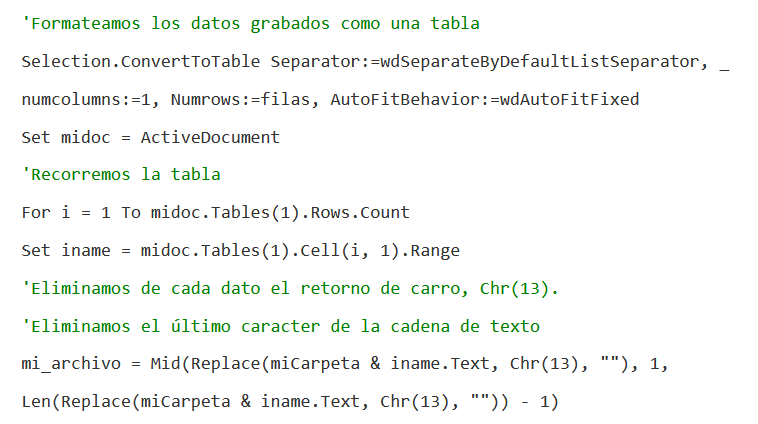
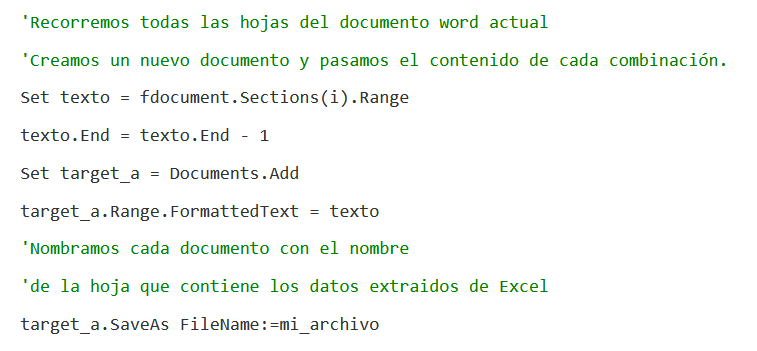
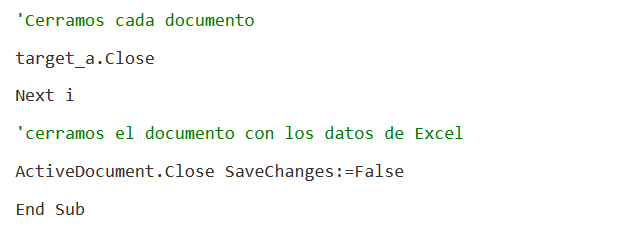
Now that you know the procedure to merge and save as separate documents, you will need the macro code, so here it is for you to copy into your macro workbook following the steps explained.
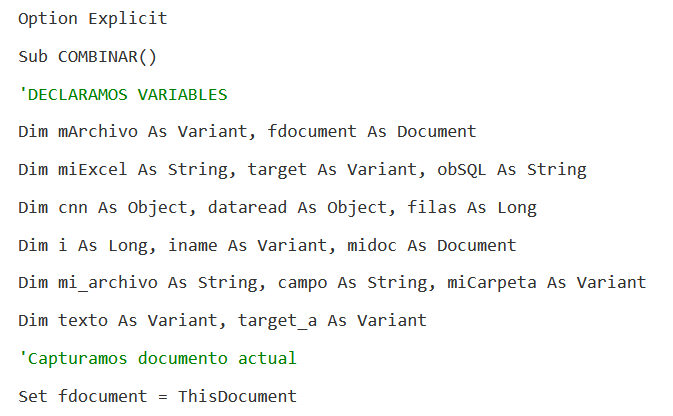
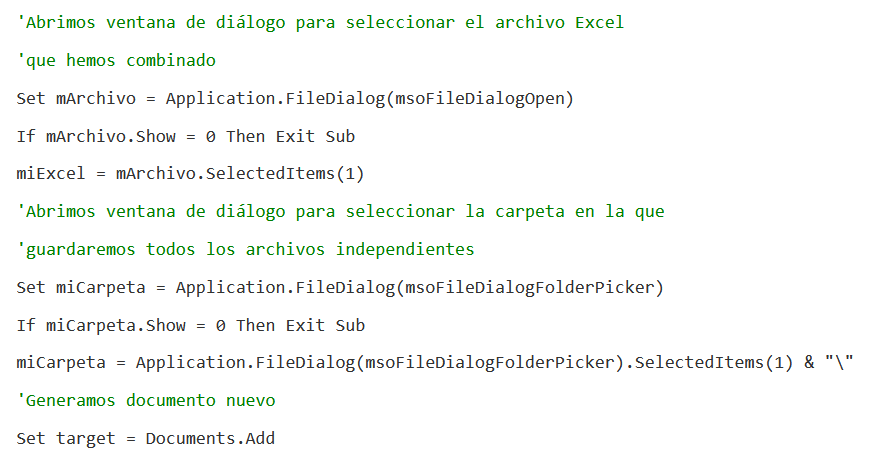
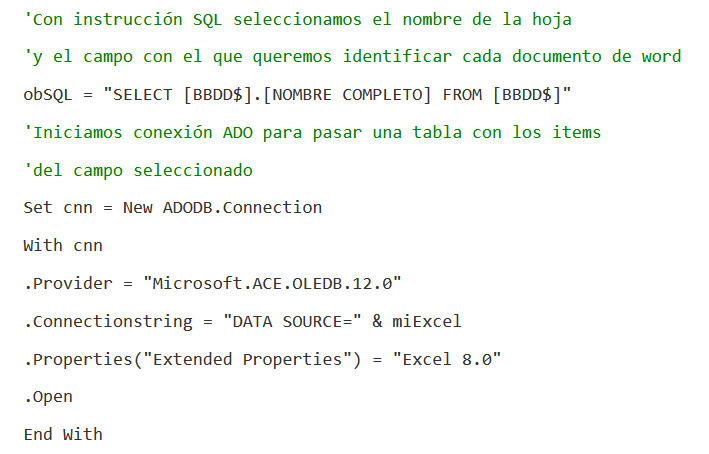

Want to save time when merging and saving to separate documents?
If you want to do this quickly instead of copying the macro line by line, I recommend getting the source code at the following link.
Note: Purchasing the macro code does not include any support from the author of this page, since macro code can have errors that vary depending on the version of Office you are using.
This code was tested in Office 2016-2019 and Office 365
I'm a designer: how do I merge into separate documents in Corel Draw?
The interesting thing is that in Corel Draw you don't need macros, but you do need to follow the steps in the following video.

I want to merge into separate PDF documents
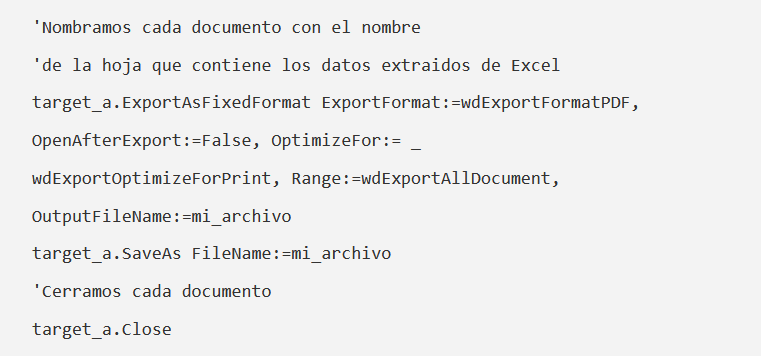
For this, put the following code in your macro workbook and you will get each document separately in both Word and PDF format, one of each.
Prefer to have it ready?
More guides in Excel automation for office work