
Sending bulk emails with Word is an essential tool for businesses and professionals who want to communicate with a large audience efficiently. Fortunately, Microsoft Word, part of the Office suite, offers a feature called "Mail Merge" ("Combinar correspondencia" in Spanish Word) that makes this process much easier. In this article, we'll show you how to send bulk emails using this tool and give you additional resources so you can master the technique.
What Is Mail Merge?
Mail Merge is a Microsoft Word feature that lets you create personalised documents using a database or an Excel list as the data source. It's especially useful for sending bulk emails, because it lets you personalise each message for its recipient without having to write every email individually.
Steps to Send Bulk Emails with Word
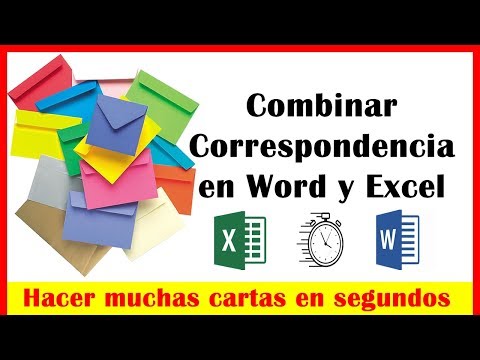
Prepare Your Database to Send Bulk Emails with Word
Before you start, it's essential to have a list or database in Excel with all the information you want to include in your emails. This list can contain names, email addresses and any other details you'd like to personalise in each email.
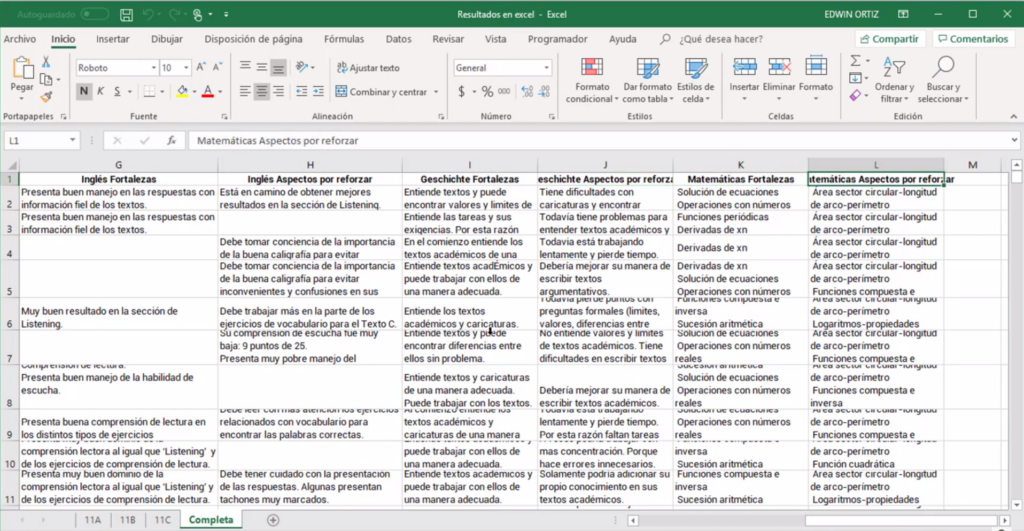
Open a New Document in Word
Launch Microsoft Word and open a new document. This will be the base document where you set up the mail merge.
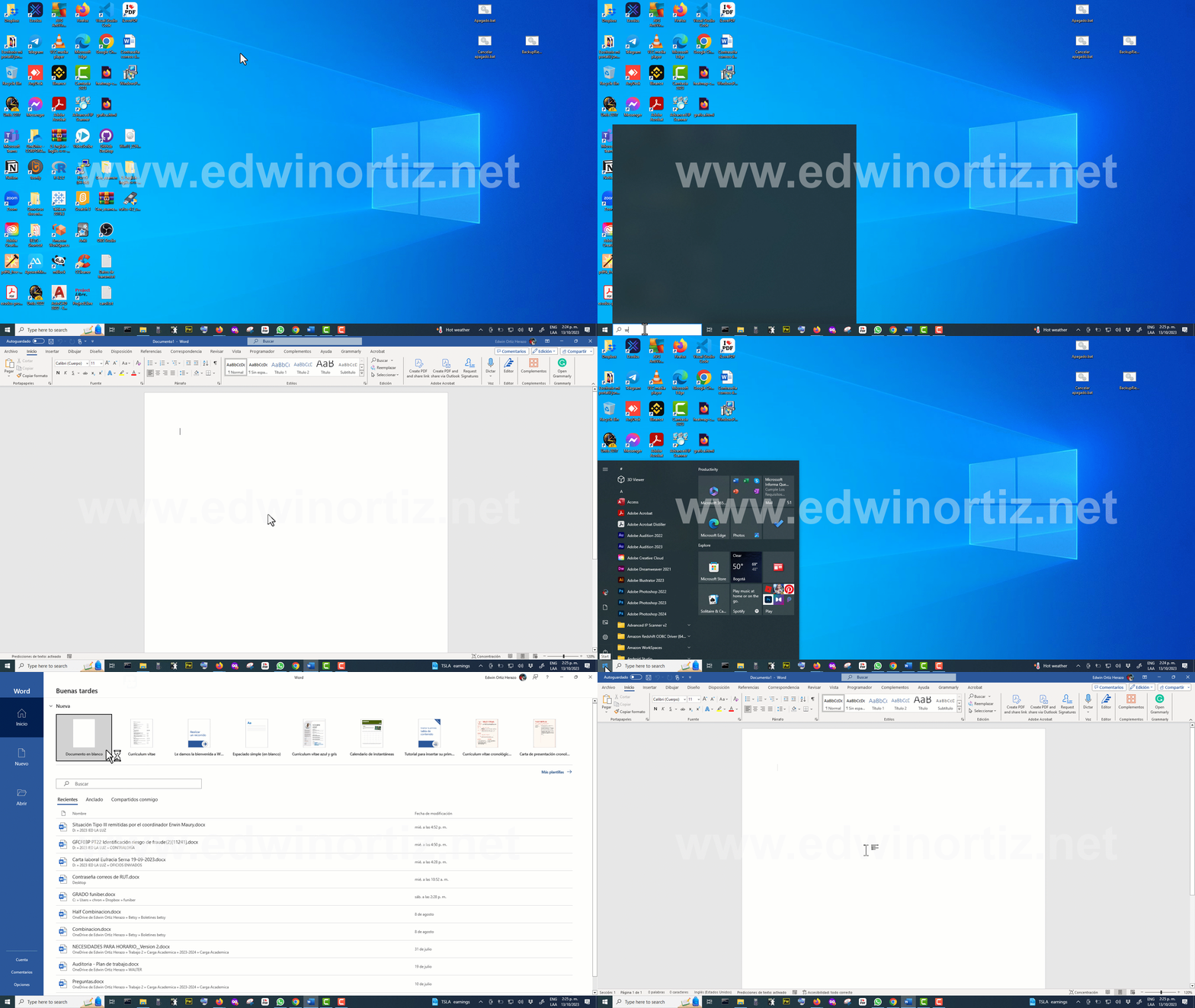
Open the Mail Merge Tool
Go to the "Mailings" tab ("Correspondencia") on the ribbon and select "Start Mail Merge" ("Combinar correspondencia"). Here, choose the "E-mail Messages" option to begin the process.
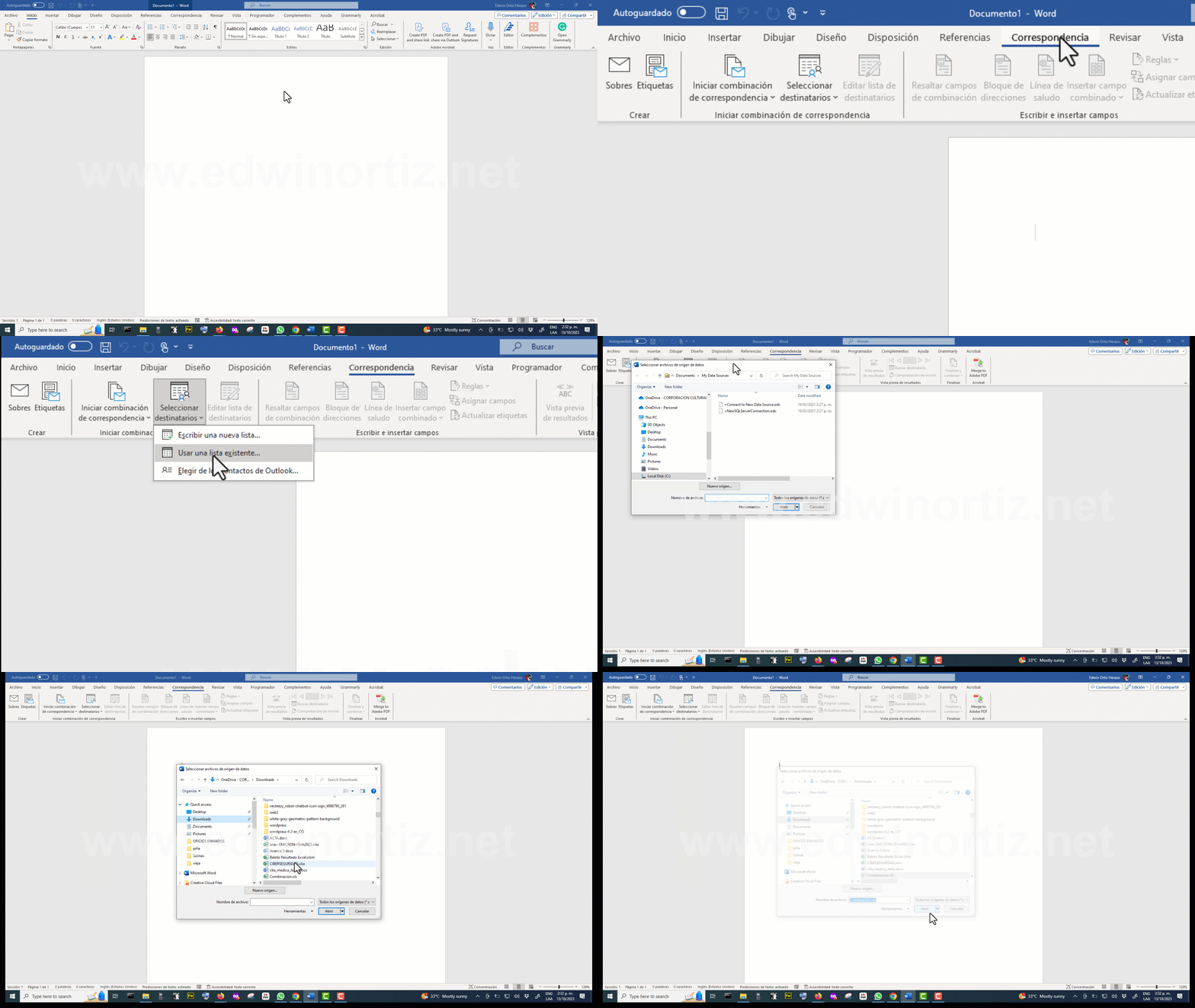
Select Recipients
Click "Select Recipients" ("Seleccionar destinatarios") and choose "Use an Existing List" ("Usar una lista existente"). Browse to and select the Excel file you prepared earlier.
Insert Merge Fields
In the Word document, decide where you want the personalised information to appear and use the "Insert Merge Field" option ("Insertar campo combinado") to choose the data you want to include.
Preview and Merge
Before sending the emails, use the "Preview Results" option ("Vista previa") to make sure everything is in order. Once you're happy with it, select "Finish & Merge" ("Finalizar y combinar") and choose "Send Email Messages" ("Enviar mensajes de correo electrónico").
Additional Resources
If you'd like to learn more about this tool, we recommend checking out these links:
Sending bulk emails with Microsoft Word's Mail Merge is a powerful technique that can save you time and effort, especially when you need to reach a large list of contacts. With practice and the right resources, you'll master this tool in no time. Good luck and happy sending!


Prefer to have it ready?
More guides in Excel automation for office work