
Mail merging to individual PDF files is one of the options that really should have been included in Word's Mail Merge tool (Combinar correspondencia in Spanish Word)
If you prefer, you can watch this whole post as a video below, and then keep reading to get the code you will need for the process.

At the moment, Microsoft Word runs mail merges between a Microsoft Excel list and a Microsoft Word document, and the result is one single document containing all the pages generated from the data in the Excel workbook.
This becomes a problem when we need those pages separately: each page is, in a sense, independent of the others, yet they are all tied together in one single document.
One reason to think about mail merging to individual PDF files would be, for example, generating payment receipts and sending each receipt as a PDF to a different recipient, as an email attachment, of course.
Merging and generating individual PDF files is a simple process if we use macros in our documents. Below I will describe the steps you need to follow to mail merge into separate documents.
Run the Mail Merge and generate the merged document with individual pages
This step is important for reaching our goal of mail merging to individual PDF files, because it gives us the first input we need before we can use the macros later on.
That said, I don't mean it is a mandatory step: if you already have a Word document and you want to split it into parts and convert the result to PDF, this mail merge to individual PDF files process will also work for you.
For this first step you need all your data in an Excel workbook, neatly organized and with column headers, as shown in the image.
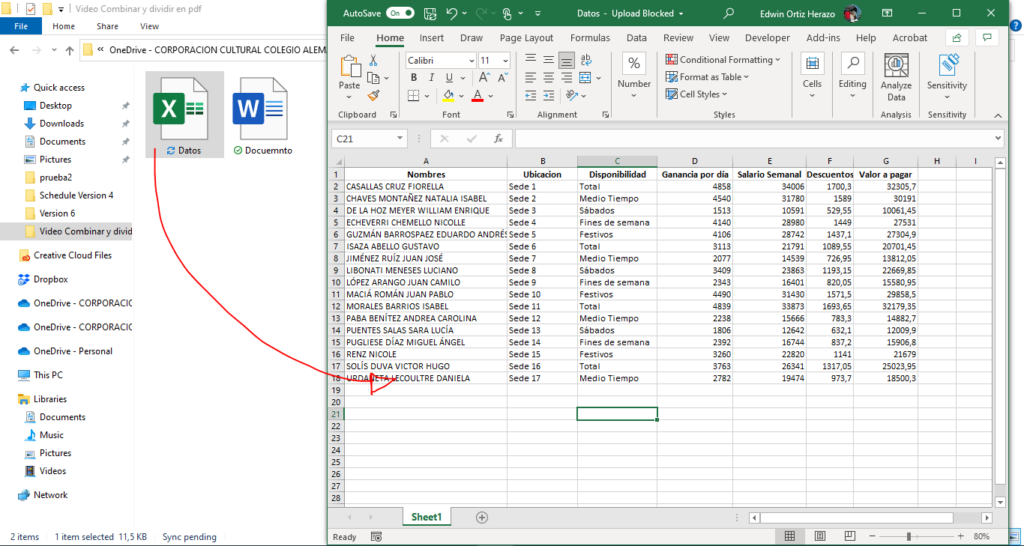
Next, we connect this Microsoft Excel workbook to our Microsoft Word document, which holds the base template, so that we get one single document with all the information ready to be split into individual documents and converted to PDF.
The real trick to generating individual PDF files
As I mentioned earlier, you need a base Word document to generate the individual PDF files, and now we have it. However, this document needs macros for this step, so your Microsoft Word must have macros enabled and allow you to add macro code. To do that, we first need to enable the following tab.

Then we add the following code to a module.
Add to cart
Finally, we run the code and get the end result: the mail merge saved as individual PDF files in the folder of your choice, ready to be used however you like.
If you would rather not do all the work of copying the code, you can get this code and others in the shop.
If you want to get the code quickly, click the Add to cart button


Mail Merge and Save as Separate Documents
Improved version with export to individual PDF files with different names. Saving each record of a mail…
$30

Mail Merge to Individual PDF Files
Microsoft Word can already run a mail merge (Combinar correspondencia) between a Microsoft Excel list and a…
$20
Post summary in images
Prefer to have it ready?
More guides in Excel automation for office work