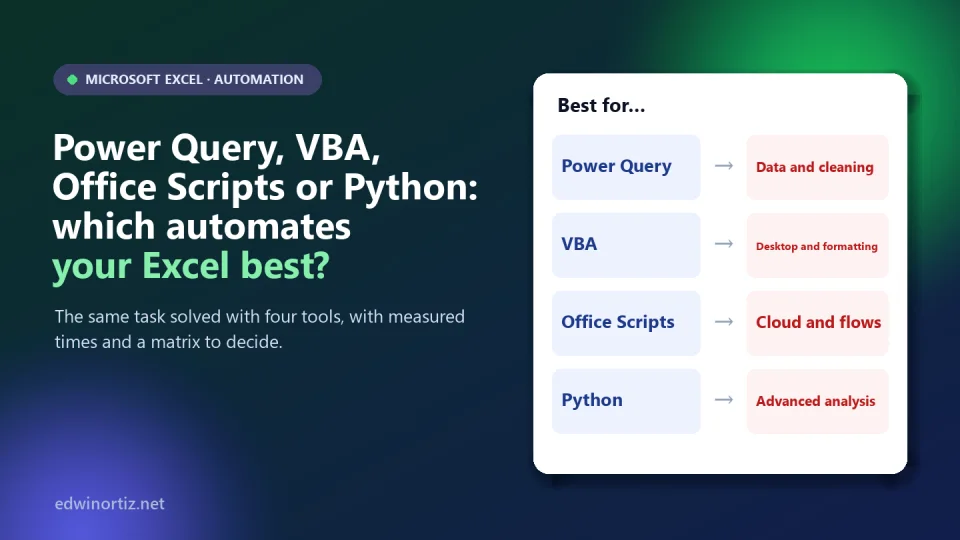
"What is the best way to automate Excel?" is a question that almost always gets a wrong answer, because it is badly framed. There is no "best" tool: there is a suitable tool for your task, your machine, your license and the person who will maintain the solution two years from now. To make the comparison concrete, I solved the same task with four tools: consolidating 12 monthly sales workbooks (120,000 rows) into a single table.
In this article I show you each alternative's code, the times I measured, each one's real requirements (with their limits) and a decision matrix to choose. One clarification: the title mentions 2027, but I can only state what exists and what I verified as of October 9, 2026; tools change, the method of deciding does not.
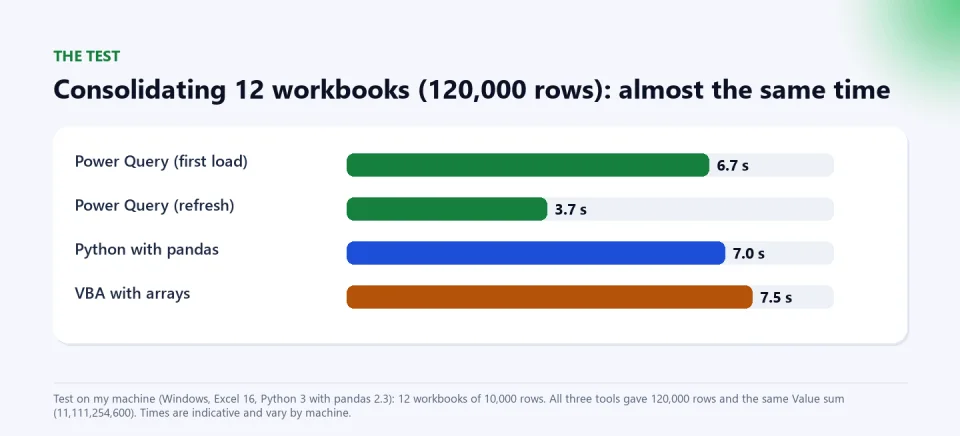
Summary. In my test, Power Query (6.7 s; 3.7 s on refresh), VBA (7.5 s) and Python with pandas (7.0 s) consolidated 120,000 rows with exactly the same result. Speed does not decide: what decides is where it runs, who maintains it and what else you need (formatting, email, cloud flows). Practical rule: use the simplest tool that solves the problem.
The task: consolidate 12 monthly workbooks
Each workbook (ventas-2026-01.xlsx to ventas-2026-12.xlsx) has one sheet with five columns (Date, Salesperson, Product, Quantity, Value) and 10,000 rows. The goal is a consolidated table of 120,000 rows, with correct data types, that can be repeated when a new month arrives. I verified the result with a control sum: the Value total must be 11,111,254,600. I tested it on Windows with Excel 16 and Python 3 with pandas 2.3.
Option 1: Power Query (no code in the sheet)
Power Query is Excel's data connector: Data > Get Data > From File > From Folder. You define it once and refresh with a click. This is the M code (Advanced Editor) I used:
let
    Source = Folder.Files("C:\PATH\data"),
    OnlyXlsx = Table.SelectRows(Source, each [Extension] = ".xlsx" and not Text.StartsWith([Name], "~$")),
    Read = Table.AddColumn(OnlyXlsx, "Data", each Excel.Workbook([Content], true){0}[Data]),
    Combined = Table.Combine(Read[Data]),
    Typed = Table.TransformColumnTypes(Combined,
        {{"Fecha", type date}, {"Vendedor", type text}, {"Producto", type text},
         {"Cantidad", Int64.Type}, {"Valor", type number}})
in
    Typed
Result: 120,000 rows, sum 11,111,254,600, 6.7 seconds on first load and 3.7 on refresh. Advantages: no macros, auditable (every step is recorded), updates by adding the new month's file to the folder. Limits: it does not format or send email; it is designed to import, clean and combine data. I explain it in depth, with the case of dates and peso values, in the article on how to import a CSV correctly.
Option 2: VBA (desktop macros)
VBA is Excel's macro language. It works for consolidating, but its strength is what comes next: formatting, creating a PDF per salesperson, sending email. This macro, which reads each file into an array and writes it at once, is the efficient version:
Sub Consolidar(ByVal carpeta As String)
    Dim destino As Worksheet, archivo As String, wb As Workbook
    Dim datos As Variant, fila As Long, n As Long
    Application.ScreenUpdating = False
    Application.Calculation = xlCalculationManual
    Set destino = ThisWorkbook.Worksheets("Consolidado")
    destino.Cells.Clear
    destino.Range("A1:E1").Value = Array("Fecha", "Vendedor", "Producto", "Cantidad", "Valor")
    fila = 2
    archivo = Dir(carpeta & "\ventas-2026-*.xlsx")
    Do While archivo <> ""
        Set wb = Workbooks.Open(carpeta & "\" & archivo, ReadOnly:=True, UpdateLinks:=0)
        With wb.Worksheets(1).UsedRange
            n = .Rows.Count - 1
            If n > 0 Then
                datos = .Offset(1, 0).Resize(n, 5).Value2   ' without the header
                destino.Cells(fila, 1).Resize(n, 5).Value2 = datos
                fila = fila + n
            End If
        End With
        wb.Close SaveChanges:=False
        archivo = Dir()
    Loop
    destino.Range("A:A").NumberFormat = "dd/mm/yyyy"
    Application.Calculation = xlCalculationAutomatic
    Application.ScreenUpdating = True
End Sub
Result: 120,000 rows, sum 11,111,254,600, 7.5 seconds. Advantages: total control of the process and the presentation; plenty of documentation. Limits: it only works in desktop Excel (not Excel for the web), the file must be saved as .xlsm and Microsoft blocks macros in files downloaded from the internet by default, so whoever receives them has to unblock them; it also requires maintenance discipline (comments, versions). To see ready-to-use macros, look at Is Excel dead in the age of AI? and the templates in the Excel section.
Option 3: Office Scripts (cloud Excel) and Power Automate
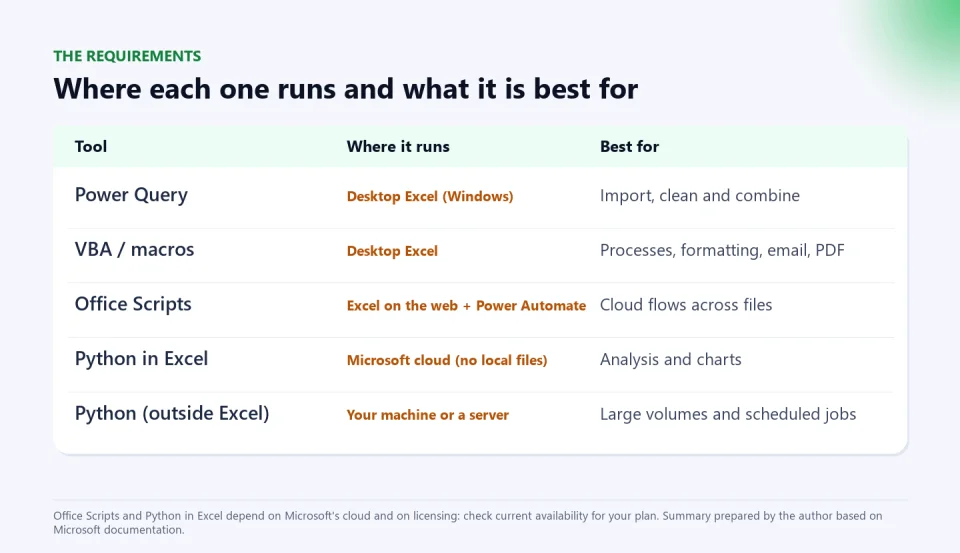
Office Scripts is the modern equivalent of macros, written in TypeScript, for Excel on the web (and recent desktop versions, according to Microsoft). One key point: a script works on the workbook it runs in; to loop over a folder of files it is orchestrated with Power Automate: a flow lists the files, runs the read script on each and then a write script on the consolidated workbook. This is the pattern (written from the documentation; I did not run it, because it needs Excel on the web, OneDrive or SharePoint and Power Automate):
// Script 1 (runs on each monthly workbook): returns the data without the header
function main(workbook: ExcelScript.Workbook): (string | number | boolean)[][] {
  const sheet = workbook.getWorksheets()[0];
  return sheet.getUsedRange().getValues().slice(1);
}

// Script 2 (runs on the consolidated workbook): appends a batch of rows
function main(workbook: ExcelScript.Workbook, rows: (string | number | boolean)[][]) {
  const sheet = workbook.getWorksheet("Consolidado");
  const next = sheet.getUsedRange().getRowCount();
  sheet.getRangeByIndexes(next, 0, rows.length, rows[0].length).setValues(rows);
}
Advantages: it runs in the cloud without your computer being on, can be scheduled and integrates with Teams, email and SharePoint. Limits Microsoft documents: requests and responses in Excel for the web are limited to 5 MB, there are 1,600 calls per day per user to the "Run script" action and a 120-second limit on synchronous Power Automate operations; using Office Scripts with Power Automate requires a Microsoft 365 business license. For 120,000 rows you have to send batches. It is a solution for teams already working in SharePoint and Power Automate, not for a small business with one computer and local files.
Option 4: Python (inside and outside Excel)
There are two different things. Python in Excel (the =PY() function) runs in Microsoft's cloud, in an isolated environment with no access to your local files or network: data enter only through the xl() function and you cannot install your own packages, only those in the curated Anaconda distribution. That is why it cannot consolidate a folder: it is for analyzing and charting data already in the workbook (for example, the table Power Query left). And Python outside Excel (on your computer or a server) can read files and is the option for large volumes and scheduled jobs:
import glob
import pandas as pd

files = sorted(glob.glob(r"C:\PATH\data\ventas-2026-*.xlsx"))
df = pd.concat((pd.read_excel(f) for f in files), ignore_index=True)

print(len(df), int(df["Valor"].sum()))                 # 120000 11111254600
print(df.groupby("Vendedor")["Valor"].sum().sort_values(ascending=False))
df.to_excel("consolidated.xlsx", index=False)
Result: 120,000 rows, sum 11,111,254,600, 7.0 seconds. Advantages: powerful for analysis, statistics and larger volumes; the code is short and reusable. Limits: you have to install Python and pandas and maintain the environment, and it is not what most offices have at hand.
Decision matrix: which do I choose?
This is the practical resource. Answer these questions in order and keep the first tool that solves your case:
| If your need is… | Choose | Why |
|---|---|---|
| Bring in, clean and combine data from files, folders or databases, and repeat it every month | Power Query | No code in the sheet, auditable, refreshes with a click. |
| Format, generate PDFs, send email or run a step-by-step process on the desktop | VBA | Total control of the desktop environment and plenty of documentation. |
| Have the process run in the cloud, without your computer, integrated with SharePoint, Teams or email | Office Scripts + Power Automate | Cloud orchestration, with its limits and business license. |
| Analyze, model or chart data already loaded in the workbook | Python in Excel (if your plan includes it) | Pandas and charts without leaving Excel, but no access to local files. |
| Very large volumes, scheduled jobs or processing outside Excel | Python outside Excel | Flexible and scalable, with its own maintenance. |
| Fixed, repeatable rules, but no programming skills | A ready-made template | The fastest and cheapest solution if one exists and fits. |
And four tie-breaker questions: 1) Who will maintain it two years from now? (if only you know how it works, it is a risk). 2) Where does it run? (desktop, web, server). 3) Which license do you have? (some features require business plans). 4) What happens if it fails? (is it auditable and reversible? I cover it in the article on the hidden risk of Excel).
Colombia, Latin America and the world: where each option matters
In the corporate world, the trend is to combine: Power Query for data, Python or BI for analysis and cloud flows for orchestration. In Colombia and much of Latin America, the reality of many small businesses, accounting offices and schools is different: desktop Excel on Windows, local files, sometimes without a business license. That is why, in my experience, Power Query and VBA solve most real cases: they are in the Excel you already have and there is plenty of documentation in Spanish. Office Scripts and Python in Excel shine where there are business licenses and cloud work. For an accountant, Power Query to reconcile and VBA to generate documents; for a teacher, Power Query to join course lists and macro templates for report cards; for a manager, the most important thing is that the process does not depend on a single person.
Tools to automate without starting from scratch
If the process you need already exists as a tested macro, save months of development. Bulk emails with attachments and CC/BCC and Mail merge and individual PDF generation are ready-to-use VBA applications that work from your Excel lists; and if you want to adapt the logic to your case, the PLUS advisory accompanies you. To start with AI and free macros, download the Excel con IA kit, and learn more on my Excel playlist on YouTube (in Spanish).
Keep reading: how to automate tasks in Excel and reduce errors and AI agents with access to your systems.
Frequently asked questions
Is VBA obsolete?
No. It still works and is very useful in desktop Excel. But it does not run in Excel for the web or in the cloud, and Microsoft blocks macros in files downloaded from the internet by default. For cloud tasks there are Office Scripts and Power Automate.
Does Power Query replace macros?
For importing, cleaning and combining data, almost always yes and with advantages. For formatting, sending email or generating documents, no: macros remain there.
Can Python in Excel read files from my computer?
No. It runs in Microsoft's cloud in an isolated environment without access to local files; data enter through xl(). To read files use Power Query or Python outside Excel.
Do I need to know how to program to automate Excel?
Not always. Power Query is managed through a graphical interface, and ready-made templates exist. Programming helps when the process is unique or complex.
Which is faster?
In my test with 120,000 rows, times were very similar (between 6.7 and 7.5 seconds; Power Query drops to 3.7 on refresh). Speed is rarely the criterion: where it runs and who maintains it matter more.
Choose with the matrix. Write down a repetitive task from your work, answer the four tie-breaker questions and pick the simplest tool that solves it. If it already exists as a template, start there: bulk emails with attachments or individual PDFs.
Food for thought
Every time we automate a task, we hide it: the process stops being visible and starts to depend on whoever built it. If the best automation is the one nobody notices, how do we keep it from becoming a black box nobody understands, and who should answer when it fails: whoever programmed it, whoever uses it or whoever decided not to document it? And is it worth learning the fashionable tool or the one that will keep working when fashion changes?
Was this article helpful?
React and share it with someone who might find it useful.
- Like 0
- Insightful 0
- Celebrate 0
- Love 0
- Thought-provoking 0
Prefer to have it ready?
More guides in Excel automation for office work