
If you regularly need to send bulk emails, you've probably wondered how to do it quickly and easily. In this article, we'll show you how to send bulk emails from an Excel list using macros and Outlook.
To do this, we'll use Excel's VBA programming language, which lets us automate the email-sending process and save a lot of time and effort.
How to Create an Email List in Excel
Before we start sending emails, the first thing we need is an email list in Excel. To build it, follow these steps:
- Open a new Excel workbook and create a new worksheet.
- In the first row, type the header for each column (name, email address, subject, email body, etc.).
- From the second row onwards, enter the information for each email.
Make sure every column has a header and that the information in each row belongs to the same email.
How to Write the VBA Code
Once you have your email list in Excel, it's time to write the VBA code that will let us send bulk emails from Outlook.
The first thing we need to do is open the VBA editor in Excel. To do this, press "Alt" + "F11".
Inside the VBA editor, follow these steps:

- Click "Insert" ("Insertar" in Spanish Excel) on the menu bar and select "Module" ("Módulo").
- In the new module that has been created, type the following code:
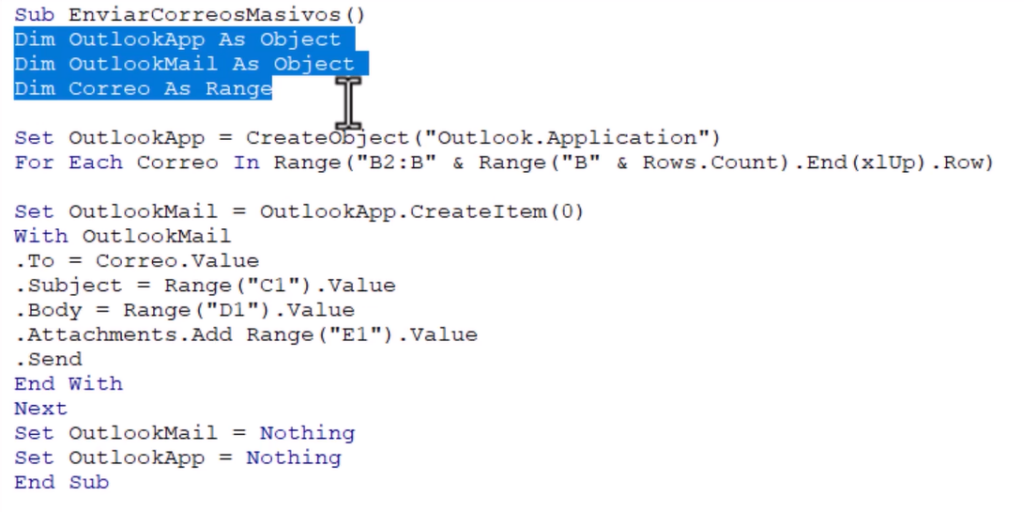
- Make sure the email list is in column B, the email subject is in cell C1, the email body in cell D1 and the attachment in cell E1.
How to Run the Email Macro
Once you've written the VBA code, it's time to run it. To do this, follow these steps:
- Go back to the Excel sheet that contains the email list.
- Press "Alt" + "F8" to open the Macro dialog box.
- Select the "EnviarCorreosMasivos" macro and click "Run" ("Ejecutar").
- Wait for the macro to finish sending all the emails.
That's it! Now you know how to send bulk emails from an Excel list.
Need a More Robust Solution?


Mail Merge and Save as Separate Documents
Improved version with export to individual PDF files with different names. Saving each record of a mail…
$30
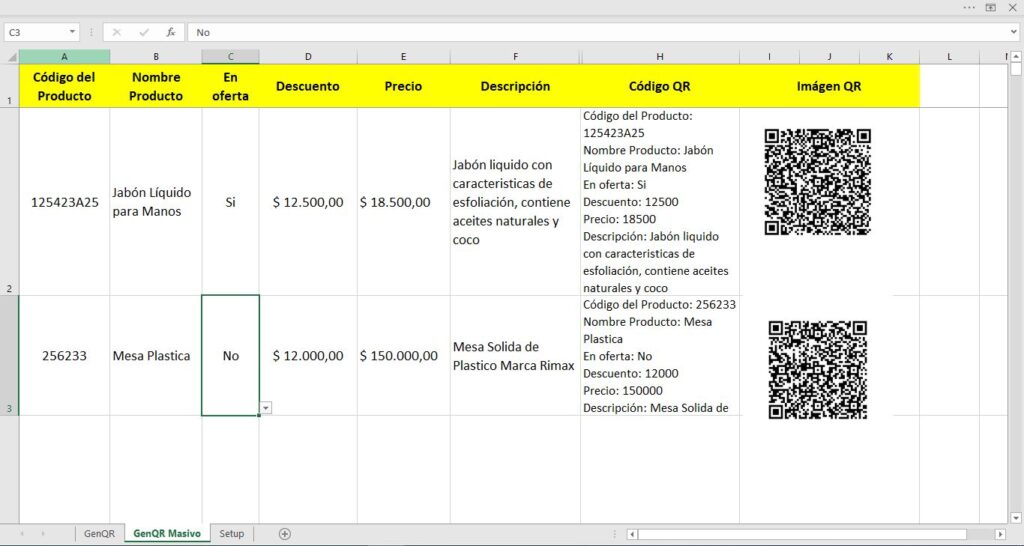
Bulk QR Code Generator
The Bulk QR Code Generator for products is a simple solution for self-service stores that want their…
$15
Prefer to have it ready?
More guides in Excel automation for office work