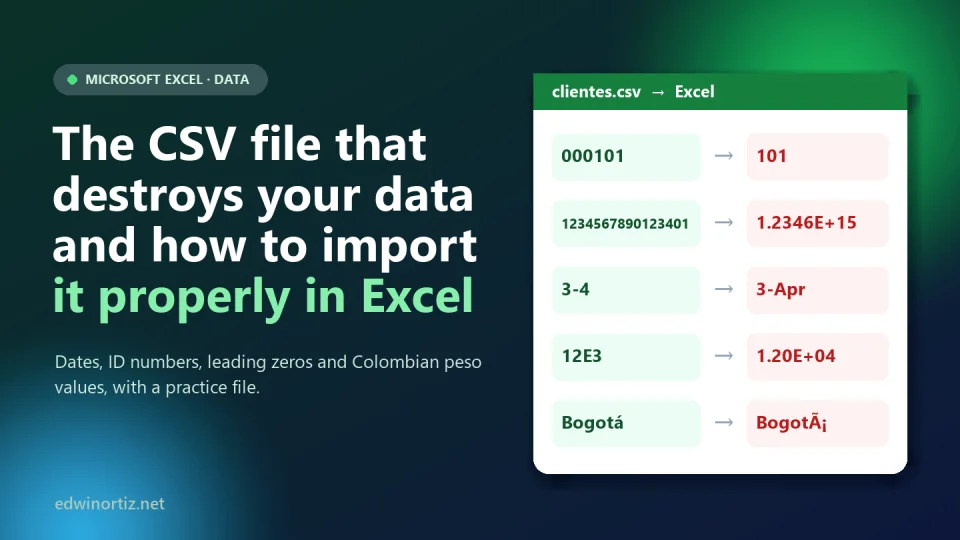
They send you the customer list from the company system, the bank or the grading platform. It is a .csv file, you double-click and it opens in Excel. Everything looks normal, until you notice that customer 000101 is now 101, that the 16-digit account number ends in zeros, that the reference 3-4 reads "3-Apr" and that the sum of the values column does not add up. Excel did not make a mistake: it guessed, and guessed wrong.
In this tutorial I show you why it happens, how to import a CSV without Excel "interpreting" anything, how to repair a file you already opened and how to export without surprises. All with a downloadable practice file with deliberately problematic records, tested in Microsoft Excel with Colombian regional settings on October 9, 2026.
Summary. A CSV is just text: it stores no types, formats or language. On a double click, Excel decides each value's type using Windows regional settings. Import through Data > Get Data > From Text/CSV, choose UTF-8 and the delimiter, do not detect types and set each column's type yourself: identifiers always as text.
Why Excel damages your data when it opens a CSV
A CSV ("comma-separated values") file is not an Excel workbook: it is plain text where each line is a row and a separator marks the columns. It does not say whether 000101 is a number or a code, whether 04/03/2026 is April 3 or March 4, or whether 1.250.000,50 uses the period as a thousands separator. When you double-click it, Excel converts everything that "looks like" a number or a date using your computer's regional settings. On a Windows PC set to Colombia, the decimal is the comma, the thousands separator is the period and the list separator is the semicolon; on one set to the United States it is the other way around.
With the practice file (12 made-up customers), this is what Excel did when opened with a double click:
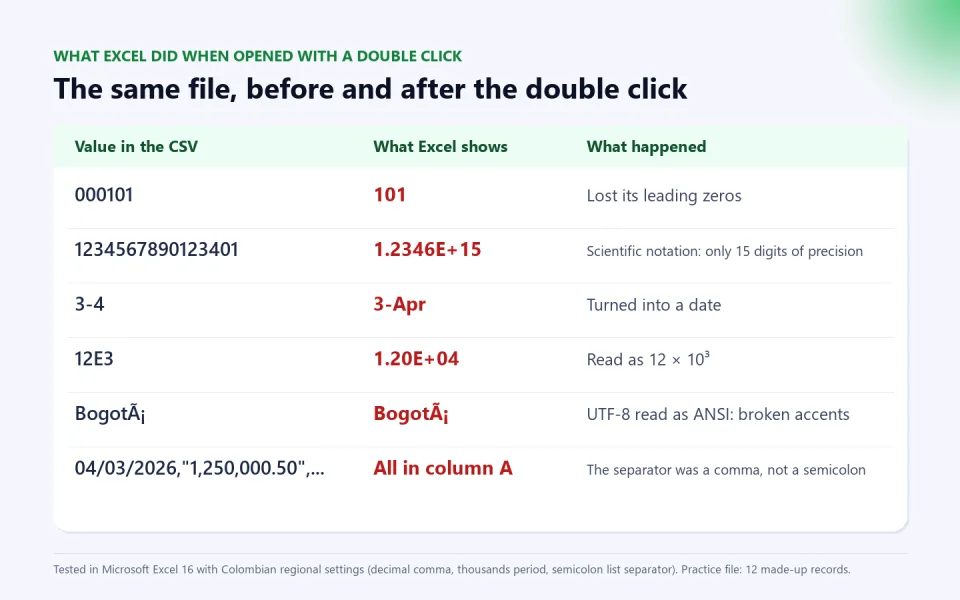
There are five families of damage, and it pays to recognize them separately:
- Wrong separator. A "US" CSV separates with commas; a Colombian Excel expects semicolons. Result: the whole file lands in column A. If you "fix" it with Text to Columns carelessly, values such as
"1,250,000.50"are split in half. - Decimals and thousands.
1,250,000.50and1.250.000,50are the same number written under different rules. If the file and your Excel disagree, the value is read as text or with a different value, and the column sum stops adding up without warning. - Ambiguous dates.
04/03/2026is April 3 in a US file and March 4 in a Colombian one. If the day is greater than 12 (04/15/2026) the error shows; if it is 12 or less, the date ends up wrong and nobody notices. - Leading zeros, codes and long numbers.
000101becomes101. A reference such as3-4becomes "3-Apr",12E3becomes 12,000 in scientific notation and1E5becomes 100,000. And any number over 15 digits (accounts, cards, some identifiers) loses precision: Excel keeps 15 significant digits and replaces the rest with zeros. That last damage is irreversible:1234567890123401becomes1234567890123400. - Broken accents. If the file is UTF-8 without a BOM mark, Excel reads it as ANSI and "Bogotá" becomes "Bogotá".
It is not a minor problem, nor one limited to accountants. In 2016 a team screened 35,175 supplementary files from 18 scientific journals and found Excel-caused gene name errors in 704 of 3,597 papers with gene lists (19.6%): symbols such as SEPT2 or MARCH1 were turned into dates. The scientific community ended up renaming genes to avoid the problem. In your small business the equivalent is invoices with damaged ID numbers, tax IDs or references, and student lists with altered identity documents.
The right way: import with Power Query, don't double-click
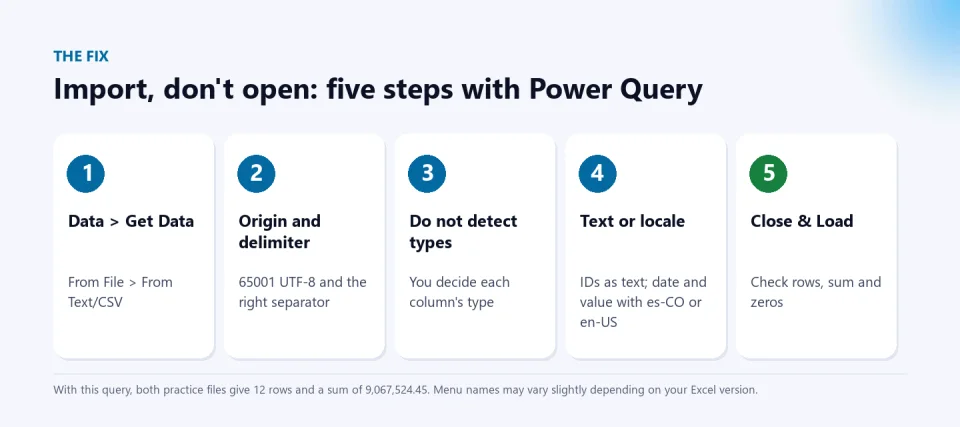
The fix is to stop "opening" the CSV and start importing it, telling Excel what each thing is. It is the procedure documented by Microsoft for text and CSV files. The steps (menu names may vary slightly by version):
- Data > Get Data > From File > From Text/CSV and select the file.
- In the preview, choose File Origin: 65001 Unicode (UTF-8) and the right delimiter (semicolon, comma or tab).
- Under Data Type Detection, choose Do not detect data types and click Transform Data. Everything arrives as text and nothing is altered.
- In the Power Query Editor, use the first row as headers and set each column's type. Identifiers (ID number, tax ID, account, code, phone, reference) stay as Text. For the date and the value, right-click the column > Change Type > Using Locale… and choose the file's locale: Spanish (Colombia) if it comes with day/month/year and decimal commas, or English (United States) if it comes with month/day/year and decimal points.
- Close & Load. The query is saved: if another file with the same format arrives tomorrow, just click Refresh.
If you prefer to see the code (Advanced Editor), this query imports the Colombian-format file from the practice package; for the US file only the delimiter, the path and the locale change:
// Colombian file: ";" separator, decimal comma, day/month/year date
let
    Source = Csv.Document(File.Contents("C:\PATH\clientes-formato-colombia.csv"),
        [Delimiter = ";", Columns = 8, Encoding = 65001, QuoteStyle = QuoteStyle.Csv]),
    Headers = Table.PromoteHeaders(Source, [PromoteAllScalars = true]),
    Typed = Table.TransformColumnTypes(Headers,
        {{"id_cliente", type text}, {"cedula", type text}, {"fecha", type date},
         {"valor_cop", type number}, {"cuenta", type text}, {"referencia", type text},
         {"telefono", type text}, {"ciudad", type text}}, "es-CO")
in
    Typed

// US file: change only these three things
//   File.Contents("C:\PATH\clientes-formato-estados-unidos.csv")
//   Delimiter = ","
//   ... }}, "en-US")
With this query, both files give the same, verifiable result: 12 rows, the valor_cop sum is 9,067,524.45, customer 000101 keeps its zeros, the account keeps its 16 digits, the first row's date is April 3, 2026 (not March 4), 3-4 and 12E3 stay intact and accents display correctly.
If you already opened the file: what can be repaired and what cannot
Some damage can be fixed with formulas; some cannot be undone. I tested these formulas in Excel:
| Problem | Repairable? | Formula (English Excel) |
|---|---|---|
| Lost leading zeros (6-digit code) | Yes, if you know the length | =TEXT(A2,"000000") |
| Text value in US format ("1,250,000.50") | Yes | =NUMBERVALUE(A2,".",",") |
| Text value in Colombian format ("1.250.000,50") | Yes | =NUMBERVALUE(A2,",",".") |
| Text date in month/day/year ("04/03/2026") | Yes | =DATE(RIGHT(A2,4),LEFT(A2,2),MID(A2,4,2)) |
| Values with a peso symbol ("$ 1.250.000") | Yes, after removing the symbol and spaces | =NUMBERVALUE(SUBSTITUTE(SUBSTITUTE(A2,"$","")," ",""),",",".") |
| 16-digit number with lost precision | No: you must re-import | — |
| Reference "3-4" turned into "3-Apr" | Not reliably: the original was lost | — |
| Broken accents ("Bogotá") | Avoided by re-importing with UTF-8 | — |
The practical rule: if the data was lost on opening, repair by going back to the original file, not on the damaged workbook. And always keep an untouched copy of the CSV.
Exporting without surprises: the "CSV UTF-8" case
The same care applies in reverse. In an Excel set to Colombia, Save As > CSV UTF-8 (Comma delimited) produces a file with a BOM mark (the one that lets accents read correctly), but separates columns with a semicolon and writes decimals with a comma: a row comes out as 1250000,5;Bogotá. It is right for another Colombian Excel and a disaster for a system expecting commas and points. Before sending a CSV, agree with the recipient on field separator, decimal separator, date format and encoding. If the destination is a platform or an ERP, the safest option is to ask for ISO dates (2026-04-03), which are not confused in any country.
Colombia, Latin America and the world: why it is everyone's problem
The format clash is global. Colombia, Argentina, Chile, Brazil and Spain use the comma as the decimal separator; the United States, the United Kingdom and Mexico use the period. A Colombian small business exporting sales to a customer in Mexico, or receiving a supplier's catalog from the United States, lives this problem every week. What changes between contexts is the cost: a large company can have a data team; a small business, a school or an accounting office usually has one person with Excel. For them, learning to import a CSV correctly is among the lowest-cost, highest-return investments.
- Accountants and small businesses: ID numbers, tax IDs and account numbers are identifiers, not numbers: they are never summed or given numeric formats.
- Teachers and schools: student lists carry documents with zeros, group codes such as
10-11(which Excel turns into a date) and accents. A damaged list produces report cards with wrong data. - IT teams: requiring UTF-8, an explicit separator and ISO dates in every export avoids most of these errors at the source.
Checklist: before and after importing a CSV
This is the practical resource. Print it or paste it as a "Control" sheet in your workbooks:
| When | Check |
|---|---|
| Before | Open the CSV in Notepad: what is the separator? how are decimals and dates written? do accents look right? |
| Before | Ask whoever generated it for the format and encoding. Keep an untouched copy of the original. |
| When importing | Origin 65001 (UTF-8), correct delimiter, Do not detect data types. |
| When importing | Identifiers (ID, tax ID, account, phone, code, reference) as Text; date and values with the file's locale. |
| After | Count the rows and compare them with the source system's total. |
| After | Compare the sum of values with the source total (in the practice: 9,067,524.45). |
| After | Eyeball identifiers: length, leading zeros, no "E+". |
| After | Check 3 dates with a day of 12 or less against the original. |
| When exporting | Agree separator, decimal, date (ISO) and UTF-8 encoding with the recipient. |
Tools to work with your data without damaging it
If your job is moving data between files, emails and documents, these problems show up every day. The Excel data merge app for separate DOCX and PDF documents takes your table (with properly typed IDs, dates and values) and generates one document per row; and Bulk emails with attachments and CC/BCC sends each email with its attachment from a list. Both work with clean data: a damaged identifier in the table becomes a wrong letter or email. If you need values written out in words on invoices or checks, use the free number-to-words converter.
And to diagnose a table before using it, the free Excel con IA download includes the PerfilarDatos macro, which checks types, blanks and odd values in your sheet. To keep going with Excel, see how to automate tasks in Excel and reduce errors, PivotTables and Is Excel dead in the age of AI?. And my Excel playlist is on YouTube (in Spanish).
Frequently asked questions
Why does Excel remove leading zeros when opening a CSV?
Because it reads 000101 as the number 101. Import the file with Power Query and leave that column as Text, or format the column as Text before pasting the data.
How do I stop Excel from turning my codes into dates?
Codes such as 3-4 or 10-11 become dates when you double-click. Import with Do not detect data types and leave the column as Text.
How do I open a semicolon- or comma-delimited CSV in Excel?
With Data > Get Data > From Text/CSV, choosing the right delimiter in the preview. That way you do not depend on Windows' list separator.
How do I fix misspelled accents (Bogotá)?
Import the file again and choose origin 65001 Unicode (UTF-8). Saving the damaged workbook again does not fix the letters.
Can a long number that ended up in scientific notation be recovered?
No, if Excel already rounded it to 15 digits: that data is lost. You have to go back to the original CSV and import the column as Text.
Practice now. Download the practice file (ZIP), open it with a double click and see what breaks; then import it with Power Query and compare against the checklist. When your daily job is moving this data into documents and emails, the Excel data merge app and bulk emails with attachments save you the hours; and if you want me to help you implement it, there is the PLUS advisory.
Food for thought
A decades-old format, designed to "pass data" between programs, still moves payrolls, invoices and grades, and nobody teaches it. If an import error changes a student's ID number or an invoice's value, who is responsible: whoever exported the file, whoever opened it without checking or software that prefers to guess rather than ask? And should we demand, as in any other quality control, that data always arrive with its format manual?
Was this article helpful?
React and share it with someone who might find it useful.
- Like 0
- Insightful 0
- Celebrate 0
- Love 0
- Thought-provoking 0
Prefer to have it ready?
More guides in Excel automation for office work