In almost every company, school and office there is an Excel file something important depends on: payroll, commissions, inventory, grades, the budget. Someone built it years ago, three other people have modified it and nobody remembers which one is "the good version". Nobody audits it, nobody versions it and yet it moves money and decides things.
In this article I show you, with a case tested in Excel, how a seemingly small mistake can alter a total by almost 20% without anyone noticing; how to catch it with controls you can copy and paste; and how to organize an audit of your critical spreadsheets. Data and tools checked on October 9, 2026.
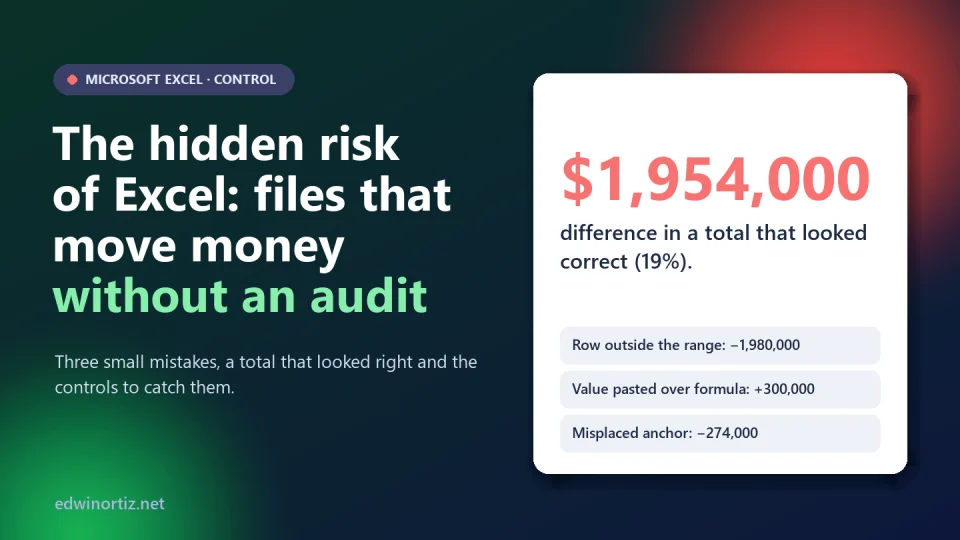
Summary. Spreadsheet errors are common and often invisible: in a tested case with nine salespeople, three small mistakes made the commission total differ by 1,954,000 pesos (19%) and the total still "looked reasonable". The controls that catch it are simple formulas. What is missing is not technology but the habit of reviewing.
What the evidence says: spreadsheet errors are the rule
The most famous case is that of the economists Reinhart and Rogoff. In 2013, Herndon, Ash and Pollin discovered that their spreadsheet averaged rows 30 to 44 instead of 30 to 49, leaving out five countries; that range error alone explained about 0.3 percentage points of difference in the average growth of high-debt countries. Together with other exclusion and weighting decisions, the corrected growth was 2.2%, not the published −0.1%. That study was widely cited in economic policy debates.
Is it an isolated case? The literature on spreadsheet risk says no. In a review of field audits, Raymond Panko reports that the most recent and rigorous audits found errors in at least 86% of the spreadsheets audited, and that developers make uncorrected errors in 2% to 5% of formulas. Be careful with figures circulating without a source: the "94% of spreadsheets have errors" appears in second-hand summaries and I could not confirm it in the original work, so the figure I can back is the 86% or more in recent audits.
A tested case: three small mistakes and a total that looks right
I built a commission sheet with nine salespeople (sales, rate and commission = sales × rate) and planted three very common errors:
- Row outside the total's range. Iván was added in row 10 after the total was built, and the formula stayed as
=SUM(D2:D9). - Value pasted over a formula. In Diego's commission someone pasted 1,800,000 as a value; the formula gave 1,500,000.
- Wrong cell anchor. Felipe's commission ended up as
=B7*C$2(it uses row 2's rate, 5%) instead of=B7*C7(6%).
The reported total was 8,292,500; the correct one, 10,246,500. A difference of 1,954,000 pesos (19%). And notice how treacherous it is: the errors partly offset each other (the pasted value adds 300,000 too much; the anchor subtracts 274,000; the row outside the range subtracts 1,980,000), so the total does not look "absurd" and nobody suspects.
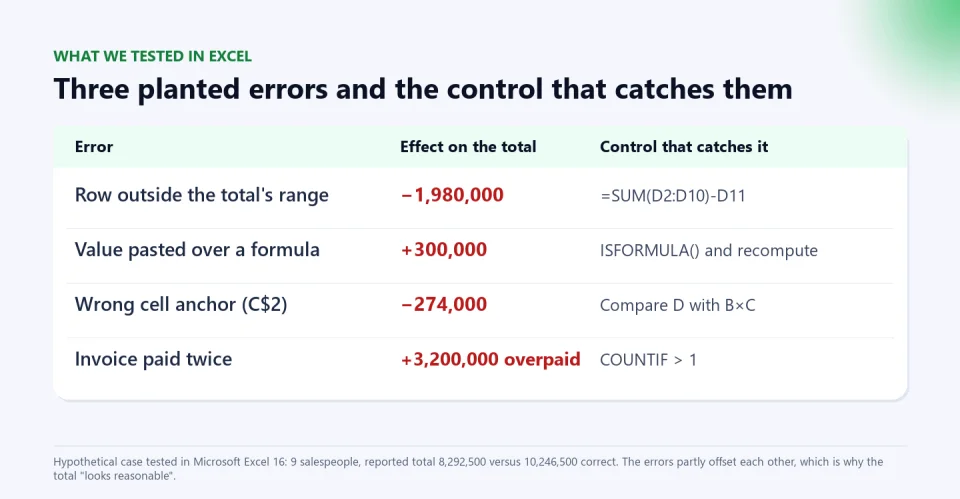
A fourth error, on another sheet, is the duplicate payment. In a list of eight invoices, FAC-1004 appears twice (3,200,000 each time): the total paid is 14,130,000 and the total without duplicates is 10,930,000. 3,200,000 was overpaid, and without a control nobody would have seen it.
Controls you can copy and paste
I tested these formulas in Excel with the sheet above (the data range is D2:D10; the commission is in D and the total in D11). Put them on a "Control" sheet; all should return zero:
// 1. Rows left out of the total (should be 0; in the case it gave 1,980,000)
=SUM(D2:D10)-D11

// 2. Cells in the column that do NOT have a formula (should be 0; in the case it gave 1)
=SUMPRODUCT(--NOT(ISFORMULA(D2:D10)))

// 3. Rows where commission does not match sales x rate (should be 0; in the case it gave 2)
=SUMPRODUCT(--(D2:D10<>B2:B10*C2:C10))

// 4. See the formula of a suspicious cell (in the case it showed =B7*C$2)
=FORMULATEXT(D7)

// 5. Independently recomputed total (in the case it gave 10,246,500)
=SUMPRODUCT(B2:B10,C2:C10)

// 6. Duplicate invoices: flag each repeated one (on the payments sheet)
=IF(COUNTIF($A$2:$A$9,A2)>1,"DUPLICATE","")

// 7. Total without duplicates and how many invoices repeat (in the case: 10,930,000 and 1)
=SUMPRODUCT(B2:B9/COUNTIF(A2:A9,A2:A9))
=COUNTA(A2:A9)-SUMPRODUCT(1/COUNTIF(A2:A9,A2:A9))
The Spanish-language names are SUMA, ESFORMULA, NO, FORMULATEXTO, SUMAPRODUCTO, SI, CONTAR.SI and CONTARA, and the argument separator is a semicolon. Control 3 works even when the error is a pasted value or a misplaced anchor: both make the commission stop being sales × rate. And control 5 is the core idea: recompute the total by another path and compare.
A note on Excel Tables: when you convert a range into a table, formulas can use column names, such as =SUM(tComisiones[Comision]), which read better and adjust when rows are added to the table. In my test, a fixed range that covered the table's entire column also expanded; the real risk appears when rows are pasted outside the table or below the total. That is why it pays both to structure the data and to control the totals.
Auditing and version control with the tools you already have
- See all formulas. Formulas > Show Formulas (or Ctrl + `) and Trace Precedents to follow where a number comes from.
- Inquire and Spreadsheet Compare. Microsoft offers the Inquire add-in (it analyzes a workbook and compares two versions cell by cell) and the Spreadsheet Compare tool, but only in Excel for Windows with enterprise editions (Office Professional Plus or Microsoft 365 Apps for enterprise). If you do not see the option in File > Options > Add-ins > COM Add-ins, your edition does not include it.
- Version history. If the file is on OneDrive or SharePoint with a Microsoft 365 subscription, File > Info > Version History saves versions automatically and lets you restore. Local files do not have this feature.
- Protect. Lock formula cells and protect the sheet; leave only input cells editable, with Data Validation (for example, only numbers between 0 and 1 for a rate).
- One "official" file. No final_FINAL2_reviewed.xlsx: one shared location, one responsible owner and a "Change log" sheet with date, who, what changed and why.
- Separate duties. Whoever builds the sheet is not whoever reviews it.
Colombia, Latin America and the world: why it matters more for small businesses
Worldwide, large companies have internal audit and model-management tools, and there are still cases like Reinhart and Rogoff's. In Latin America and Colombia, most small businesses, accounting offices and schools depend on Excel for payroll, invoicing, inventory and grades, as I describe in Is Excel dead in the age of AI?, but they rarely have a review process. For an accountant the risk is an error in a tax return or a reconciliation; for a manager, a poorly supported pricing or purchasing decision; for a teacher or school leader, miscalculated grades that affect a student's promotion (which connects with the article on what grades measure). The good news is that the controls are cheap: a "Control" sheet and a habit.
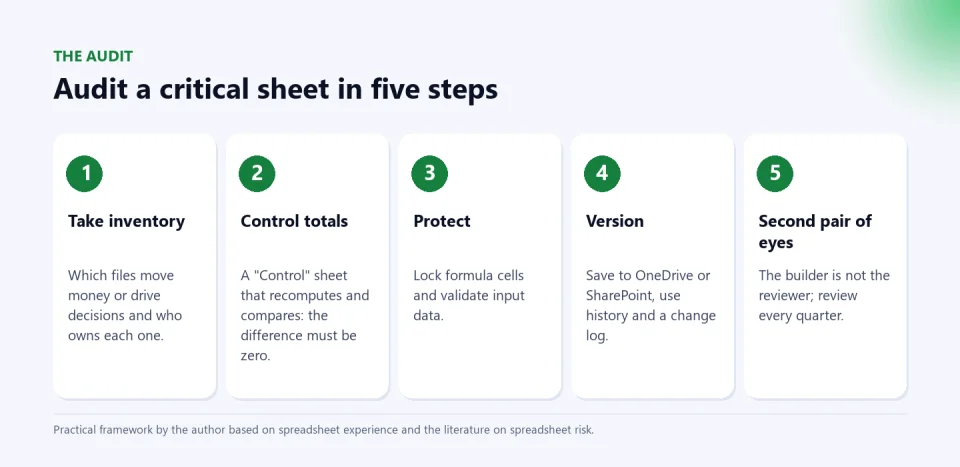
Audit your critical sheets: step by step
- Inventory. List the Excel files that move money or decide things (payroll, commissions, inventory, grades, budget) and note each one's owner.
- Total test. For each one, recompute the total by another path (control 5) and compare.
- Cells with pasted values. Look for cells without a formula in calculated columns (control 2).
- Duplicates. Check for repeated identifiers (control 6).
- Protection and versions. Lock formulas, validate input and move the file to a location with version history.
- Second review and calendar. Have someone else repeat the control and schedule a quarterly review.
Tools to automate and control
Numbering and duplicate errors disappear when the template controls the sequence: the Simple invoice with automatic numbering assigns the number consecutively and prevents repeating invoices. If you want someone to review your critical sheets or help you implement controls, the PLUS advisory accompanies you. And if you want to learn to automate without damaging your data, see the article on how to import a CSV correctly, with a practice file, and how to automate tasks in Excel and reduce errors.
Frequently asked questions
How do I know whether a cell has a formula or a pasted value?
Use =ISFORMULA(D2), which returns TRUE if the cell has a formula. For a whole column, =SUMPRODUCT(--NOT(ISFORMULA(D2:D10))) counts the cells without a formula.
How do I prevent a row from being left out of the total?
Compare the total with an independent sum of the whole column (control 1) and use Tables. And always check that, when rows are added, the total includes them.
Does Excel keep the change history?
Not in local files. If the file is on OneDrive or SharePoint with a Microsoft 365 subscription, it has version history. For cell-by-cell change auditing there is the Inquire add-in, only in enterprise editions on Windows.
What do I do if I find an error in a file that was already used?
Document what failed and since when, compute the effect, fix it and notify those who used the result. Note the lesson in the change log.
Is it worth auditing small sheets?
If they move money or decide something, yes. Size does not matter: the case in this article has nine rows and a 19% error.
Do your audit this week. Pick your three most critical sheets, add a "Control" sheet with controls 1, 2, 3 and 5, and see whether they return zero. If you want someone to do it with you, write to the PLUS advisory, and to invoice without repeating numbers use the invoice with automatic numbering.
Food for thought
We trust an Excel file because it "has always worked", but never having visibly failed does not prove it is correct. If your company or school made an important decision today with a file nobody has audited, who would answer for the error: whoever built it, whoever used it or whoever never asked to review it? And should we treat critical spreadsheets with the same discipline we apply to an accounting balance sheet?
Was this article helpful?
React and share it with someone who might find it useful.
- Like 0
- Insightful 0
- Celebrate 0
- Love 0
- Thought-provoking 0
Prefer to have it ready?
More guides in Excel automation for office work