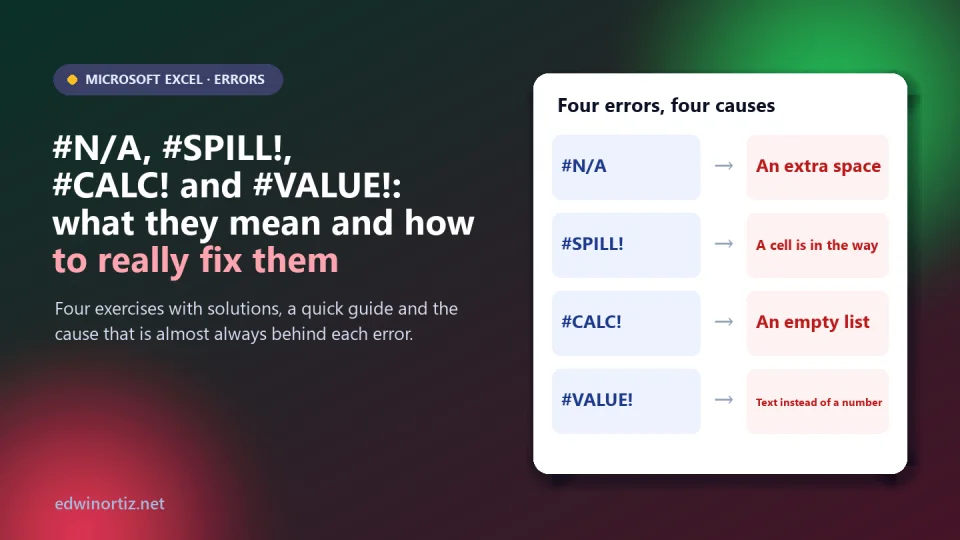
An Excel error is scary: a cell full of #N/A, another with #VALUE!, a spill that will not spill. The most common reaction is to cover it with IFERROR and move on. It is the worst idea: you hide the symptom and leave the cause, and next time the error will no longer be visible even if the numbers are wrong.
This article explains four errors that appear more and more with modern functions (#N/A, #SPILL!, #CALC! and #VALUE!), what they really mean and how to fix the cause. Each comes with a worked exercise in an exercise workbook with solutions (in Spanish). Everything was tested in Microsoft Excel 16 with es-CO regional settings (in Spanish the errors are called #N/D, #¡DESBORDAMIENTO!, #CALC! and #¡VALOR!). Verified on October 9, 2026.
Summary. An Excel error almost always has a small, concrete cause: an extra space, a cell in the way, a filter with no results, text where a number belonged. Read the error, find the cause, fix the cause and, only if it is an expected case (for example, "no results"), use the argument provided to handle it. Avoid wrapping everything in IFERROR.
Why not cover errors with IFERROR
=IFERROR(formula, "") makes any error disappear, even those that mean something is broken. If you look up the price of a code and the code does not exist, do you want to see a blank or an alarm? A blank can end up summed as zero in a total (see the hidden risk of Excel). Rule of thumb: handle expected cases explicitly (with the argument the function offers for that) and leave unexpected ones visible.
Exercise 1: #N/A
Situation. The office types the code "A-107 " (with a trailing space) and looks up its price in a list of 12 school-supply products:
=XLOOKUP(B3, Datos!A2:A13, Datos!C2:C13)        ' English
=BUSCARX(B3; Datos!A2:A13; Datos!C2:C13)        ' Spanish
' Result: #N/A (#N/D in Spanish)
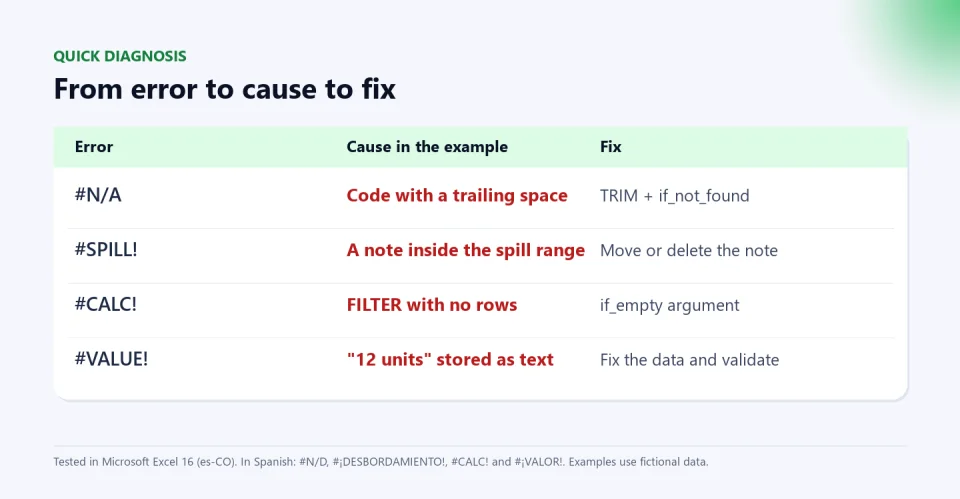
Cause. The code exists, but the one typed has a trailing space and is not identical to the one in the list. #N/A means "not available": the lookup value was not found.
Solution. Clean the lookup value and explicitly handle the case where it does not exist:
=XLOOKUP(TRIM(B3), Datos!A2:A13, Datos!C2:C13, "No existe")
=BUSCARX(ESPACIOS(B3); Datos!A2:A13; Datos!C2:C13; "No existe")
' Result: 95000
Other frequent causes of #N/A: looking up a number against data stored as text (or the reverse), differences in accents or hyphens, and lookup ranges misaligned with the results range. See also importing CSV correctly, where many of these problems begin.
Exercise 2: #SPILL!
Situation. A single formula must list all products priced above 60,000, spilling the result across several rows and columns:
=FILTER(Datos!A2:E13, Datos!C2:C13>60000)     ' English
=FILTRAR(Datos!A2:E13; Datos!C2:C13>60000)    ' Spanish
The formula is well written, but the cell shows #SPILL!.
Cause. The result occupies 5 rows and 5 columns (the filter returns five products), and in that range there is a cell with a forgotten note. A dynamic array formula needs the entire spill range to be free. When you select the cell, Excel marks the range with a dotted border, and the error menu offers to select the obstructing cells.
Solution. Delete or move the note (or move the formula to a free area). The formula does not change. I tested removing the note and the result spilled from A-101 to A-110. Other causes of #SPILL!: merged cells in the way, an Excel table (spills are not allowed inside a table) and a result larger than the sheet.
Exercise 3: #CALC!
Situation. You are asked to list the products priced above 10,000,000, and none qualifies:
=FILTER(Datos!A2:E13, Datos!C2:C13>10000000)
=FILTRAR(Datos!A2:E13; Datos!C2:C13>10000000)
' Result: #CALC!
Cause. The filter found no rows and an empty array cannot be displayed; Excel flags it as #CALC!. It is not a failure of your formula; it is an expected case.
Solution. Use FILTER's third argument (if_empty) to decide what to show:
=FILTER(Datos!A2:E13, Datos!C2:C13>10000000, "Sin resultados")
=FILTRAR(Datos!A2:E13; Datos!C2:C13>10000000; "Sin resultados")
This is the case where handling the error is appropriate: it is expected and there is an argument designed for it, with no need for IFERROR.
Exercise 4: #VALUE!
Situation. You want to compute the inventory value of product A-109 (price times units):
=Datos!C10*Datos!D10
' Result: #VALUE! (#¡VALOR! in Spanish)
Cause. Cell D10 contains the text "12 unidades" instead of the number 12, and Excel cannot multiply by text that is not a number. With a text that does look like a number (such as "1.200" stored as text) Excel sometimes converts it by itself; with "12 unidades" it does not.
Solution. The right one is to fix the data: type 12 and put the unit in the header, and add data validation to the column so it only accepts whole numbers. If you cannot touch the source, extract the number:
=Datos!C10*VALUE(LEFT(Datos!D10, FIND(" ", Datos!D10)-1))
=Datos!C10*VALOR(IZQUIERDA(Datos!D10; ENCONTRAR(" "; Datos!D10)-1))
' Result: 540000
But this is a patch: the cause is that someone typed text where a number belonged, and it will happen again.
The other frequent errors
| Error | Means | First check |
|---|---|---|
| #DIV/0! | Division by zero or an empty cell | Check the divisor; control with IF |
| #REF! | A reference no longer exists | A row, column or sheet used was deleted |
| #NAME? | Excel does not recognize a name | Misspelled function or text without quotes |
| #NUM! | Invalid number for the operation | Square root of a negative or a result that is too large |
I checked in Excel that =B1/0 gives #DIV/0!, =SQRT(-1) gives #NUM! and a nonexistent function gives #NAME?. The workbook has a "Guia_errores" sheet with all eight errors.
A four-step method
- Read the error: each points to a family of causes.
- Evaluate the formula in parts: under Formulas, "Evaluate Formula" shows each step, and F9 on a selected part calculates only that part.
- Check the input data: spaces, text versus numbers, blank cells, types.
- Fix the cause and only then decide whether that case is handled explicitly.
Colombia, Latin America and the world
Worldwide, most spreadsheet errors come from dirty data, not badly written formulas. In Colombia and Latin America there is an added obstacle: separators. Our regional settings use a decimal comma and a thousands dot, and functions have different names in Spanish (BUSCARX, FILTRAR, SI.ERROR), so copying formulas from English tutorials often produces errors. For teachers keeping grades, administrative staff with inventories and invoices and small businesses, understanding the causes keeps a silent cell from becoming a wrong total. And for those who teach Excel, these four exercises serve as diagnostic practice.
Templates and tools to work in an orderly way
If you want your data in order from the source, these templates include validations and controls. And there is a free Excel with AI guide for asking an AI to help with your formulas, always verifying what it returns.
Keep reading: when Excel stops being the solution, forecasting in Excel and charts that lie.
Frequently asked questions
What does #N/A mean in Excel?
That the lookup value was not found. The most frequent cause is extra spaces or type differences (text versus number). Clean with TRIM and use the "if not found" argument.
Why does #SPILL! appear and how do I fix it?
Because the result of a dynamic formula does not fit: there are occupied cells, merged cells or a table in the spill range. Free the range.
What is the difference between #CALC! and #VALUE!?
#CALC! indicates a calculation problem, such as an empty array; #VALUE! indicates a value of the wrong type, such as text where a number was expected.
Is IFERROR bad?
Not always, but using it for everything hides real problems. Use it when the error is expected and no specific argument exists, not to cover up failures.
Do these errors exist in older versions of Excel?
#N/A and #VALUE! have existed for decades. #SPILL! and #CALC! appear with the dynamic arrays of modern Excel (Microsoft 365 and Excel 2021 or later).
Practice now. Download the exercise workbook (in Spanish), solve the four sheets and compare with "Soluciones". It requires Excel 2021 or Microsoft 365 (XLOOKUP and FILTER).
Food for thought
A visible error is an opportunity: it tells you something is wrong. A covered error is a debt. Should organizations ban the indiscriminate use of IFERROR in workbooks that move money, grades or decisions, and require every error to be explained and resolved? Or is that an exaggeration that would choke the agility that made Excel popular?
Was this article helpful?
React and share it with someone who might find it useful.
- Like 0
- Insightful 0
- Celebrate 0
- Love 0
- Thought-provoking 0
Prefer to have it ready?
More guides in Excel automation for office work