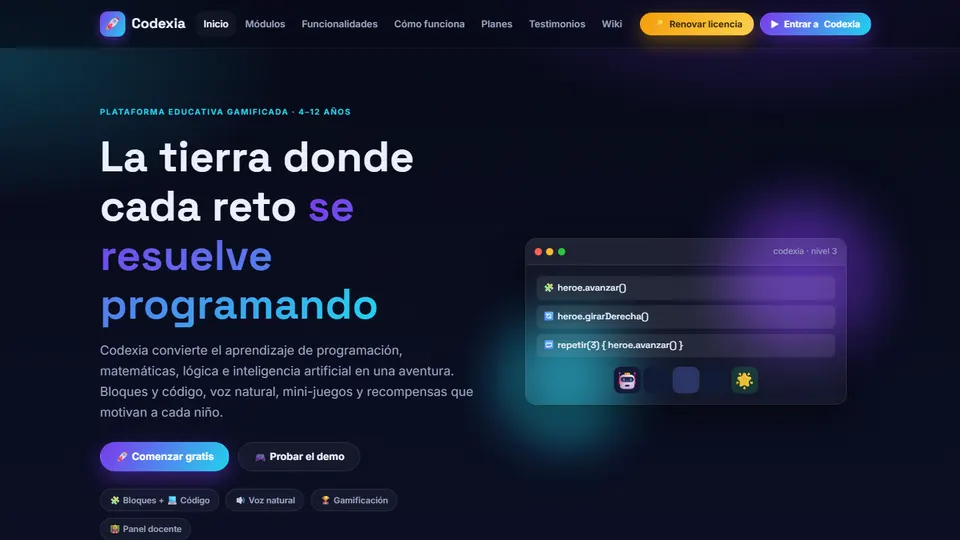
If you’re looking for a coding platform for kids that goes beyond moving a character around the screen and also helps you with math, logic, science and digital citizenship, Codexia is worth a look. It’s designed for students aged 4 to 12, combines blocks with real code, reads instructions aloud for children who can’t read yet, and includes a dashboard so the teacher can assign work and track progress. Here I’ll explain what it is, what it includes and, above all, share ten concrete ideas for bringing it into your classroom.
What is Codexia?
Codexia is a gamified educational platform developed by Grupo Logic that teaches coding, math, logic, artificial intelligence and other subjects to children aged 4 to 12.
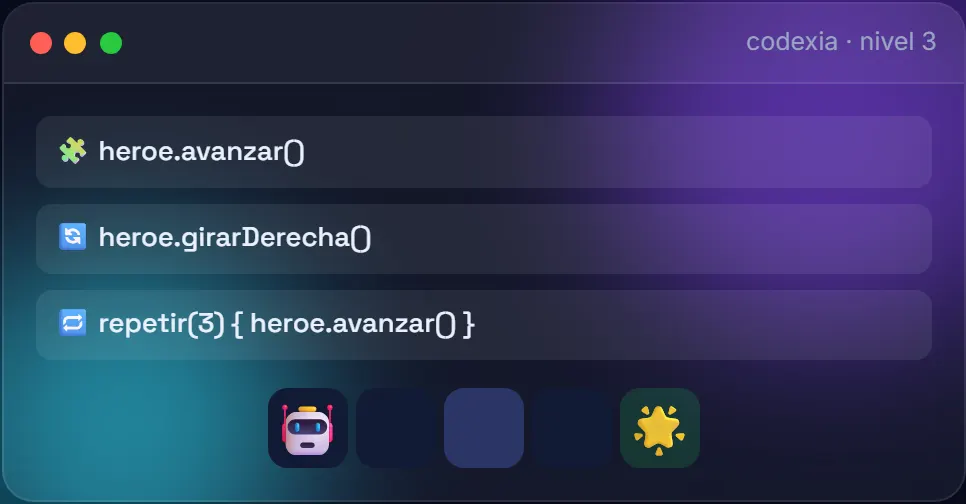
It works like a video game. Each subject is a region with worlds that unlock as the student progresses. The child picks a world, builds a program with blocks or writes code, runs it and watches the hero solve the challenge by following those instructions. At the end, they earn stars, coins, achievements and items for their avatar.
What makes it valuable for a school is that it isn’t a standalone game but a curriculum organized into ten subjects, with activities that grow in difficulty. It runs on computers and is optimized for school tablets.
Why teach computational thinking from an early age?
Computational thinking isn’t “learning to use the computer.” It’s breaking a problem down into steps, recognizing patterns, putting instructions in order and checking what went wrong when something doesn’t work. These are skills you already work on when a child solves a math problem in stages or puts the parts of a story in order.
Coding at an early age makes that process visible: if the robot didn’t reach the star, you have to check the sequence. That culture of trying, failing and fixing is useful in any subject. The hard part for teachers is usually having a structured path that is age-appropriate and doesn’t require the child to already know how to read.
Codexia’s main features
Ten subjects in one place
- Coding: sequences, loops, conditionals, variables, functions and recursion.
- Logic: patterns, classification, comparison and computational thinking.
- Arithmetic: from counting to fractions, decimals and powers.
- Geometry: shapes, perimeter, area, volume and angles.
- Computer science: hardware, networks, office software and digital citizenship.
- Internet safety: passwords, phishing, privacy and digital footprint.
- Artificial intelligence: data, patterns and the first artificial neuron.
- Basic physics: forces, gravity, light, sound, heat and magnets.
- Preschool: math and early literacy with natural voice narration, for children aged 4 to 6.
- Games and labs: arcade games, interactive simulators and mini-game templates; more than 200 games in total.
Blocks and real code, depending on age
It includes a block editor (Blockly) and a code editor (Monaco), with three age bands: icons, mixed and code. A first grader drags blocks with pictures; a fifth grader is already writing instructions such as heroe.avanzar() (“hero, move forward”) or repetir(3) (“repeat 3 times”).
Natural voice for children who can’t read yet
In Preschool, every instruction is narrated in a natural voice and supported by large icons, so children learn even before they can read or write.
Safe execution and protected data
Students’ code runs in an isolated environment, with time and instruction limits. Minors’ data is handled with their guardians’ consent, in accordance with Colombia’s data protection law (Law 1581 of 2012).
Gamification and teacher dashboard
There are stars for performance, streaks, achievements that unlock special worlds, a shop with coins and gems, and a customizable avatar. For you, the key piece is the dashboard: groups, campuses, assignments by student or by class, and live progress statistics. The school receives a code to enroll its students.
10 ideas for using Codexia in the classroom
These ideas build on what the platform offers and on classroom routines you already know.
1. A coding corner in kindergarten (ages 5 to 6)
Set up rotating learning centers: building, picture stories, pretend play, and one with two or three tablets and headphones for the Preschool section. Since the voice narrates every instruction, children don’t depend on you to read. Assign math or early literacy activities from the dashboard and keep each rotation to 10 to 15 minutes. At the end, ask each child to tell you what the game asked them to do and how they solved it: you’re also working on speaking skills.
2. Design your own level (grades 1 to 3, art and math)
After playing several challenges, each pair draws their own level on grid paper: a hero, obstacles and a star as the goal. In art class they take care of color, characters and composition. Then they swap drawings and the other team writes, with arrows or words, the program that solves the level, counting steps and turns. That’s spatial awareness, left-right orientation and counting, with no screen involved.
3. Pair programming for loops (grades 3 and 4)
Work with two roles: the “pilot” operates the device and the “co-pilot” reads the challenge, proposes the strategy and checks the work. They switch every two challenges. When you get to loops, ask the co-pilot to identify the repeated steps before dragging a single block: “if we move forward three times in a row, how do we say that with repetir(3)?” Along the way they practice listening, reasoning and taking turns to speak.
4. Geometry with challenges and notebooks (grades 4 and 5)
Assign the Geometry worlds as a complement to your unit on perimeter, area or angles. The sequence: a short explanation on the board, 20 minutes of challenges and, at the end, each student picks one challenge and explains it in their notebook with a drawing and the operation they used. That way the platform isn’t reduced to “beating levels,” and you get written evidence of learning.
5. The programmer’s journal (grades 2 to 5, language arts)
At the end of each session, children write three sentences about a challenge: what they had to achieve, which instructions they used and what they fixed. Require sequence words such as first, next, then and finally. An algorithm is, after all, an instructional text.
6. Basic physics with a real experiment (grades 3 to 5, science)
Codexia includes worlds about forces, gravity, light, sound, heat and magnets. Use them as a bridge to hands-on experience: if you’re studying magnetism, start with magnets, paper clips and classroom objects so the children can form hypotheses; then move on to the challenges and wrap up by comparing what they observed in both moments. The screen doesn’t replace the experiment, but it reinforces the concepts.
7. A digital citizenship assembly (grades 4 to 6)
The Internet safety subject covers passwords, phishing, privacy and digital footprint. Split the class into teams, give each one a topic and ask them for a mini-presentation after completing the activities: “how to recognize a suspicious message” or “what leaves a digital footprint.” Close with a role-play where the class identifies the warning signs of a deceptive message.
8. A first encounter with artificial intelligence (grades 5 and 6)
The artificial intelligence module covers data, patterns and the first artificial neuron. Before starting it, do an unplugged activity: hand out cards with drawings of fruit and ask the class to invent rules to sort them by color, size or shape. After the module, discuss: what happens if the examples a machine receives are incomplete? In the AI for teachers section you’ll find more material to keep exploring the topic.
9. A weekly challenge with fair recognition (all of elementary school)
Every Monday, assign a “challenge of the week” to the whole class from the dashboard. On Friday, review stars and streaks, but recognition isn’t just for whoever scored the most points: it’s also for whoever best explained their strategy or helped others the most. Use achievements, coins and the avatar as motivation, without turning the classroom into a leaderboard that discourages those who go more slowly.
10. Formative assessment with live statistics (all ages)
During class, the dashboard shows you who is moving ahead and who is stuck on a challenge. Use it for flexible grouping: those who have mastered the topic move on to harder challenges or help out as peer tutors; those who are stuck work with you on a mini-explanation. Since you can assign by student or by class, you can differentiate without preparing three different worksheets. An exit ticket (“What did you learn? What was hard for you?”) fills in what the numbers don’t tell you.
How to get started, step by step
- Get to know the platform yourself first. Codexia offers a 24-hour trial with access to all ten subjects; use it to explore the worlds you’re interested in.
- Present the proposal to your academic coordinator. The School plan (“Escuela”) covers the whole institution and includes the teacher dashboard, the school code and priority support.
- Enroll your students with the code the school receives when it activates the license.
- Set up groups and campuses in the teacher dashboard.
- Map the worlds to your curriculum plan: decide which subjects will accompany each math, science or technology unit.
- Start with an unplugged activity and a short first session on the platform.
- Review the statistics every week and adjust assignments based on what you see.
Best practices and precautions
- Keep screen time in check: in preschool, sessions of 10 to 15 minutes; in elementary school, alternate challenges with unplugged activities, discussion and notebook work.
- Support pre-readers: the natural voice helps, but headphones and your presence are still necessary during the first few days.
- Be inclusive: form mixed-ability pairs, respect different paces and use individual assignments for students who need a different level.
- Use gamification in moderation: stars should motivate children, not rank them.
- Inform families about the tool and how data is handled with guardians’ consent.
- Check connectivity and devices before each session. If you’re evaluating several options, take a look at these pros and cons of technology tools for teachers (in Spanish).
Frequently asked questions
From what age can children use Codexia?
From age 4, with the Preschool section, which uses natural voice narration and large icons, up to age 12, with coding in real code.
Do children need to know how to read?
No. In Preschool every instruction is narrated in a natural voice, so they can learn even before they can read or write.
Does it work on tablets?
Yes. Codexia is optimized for school tablets and also works on computers.
Is it safe for students?
Code runs in an isolated environment, and minors’ data is handled with their guardians’ consent, in accordance with Colombia’s Law 1581 of 2012.
How is it different from CodeNest School?
Both cover ages 4 to 12. Codexia spans ten subjects and more than 200 games; CodeNest School focuses solely on coding, in three age-based stages, with Spanish voice narration for every challenge.
What comes after age 12?
The path continues with VCodePro, a professional code editor with built-in artificial intelligence.
Conclusion
Codexia gives schools a complete computational thinking path starting in preschool, with the advantage of connecting coding with math, science, digital citizenship and artificial intelligence. Its real potential shows when you build it into your lesson planning with activities like the ones in this article. Find out more on the official Codexia page and explore other options in our tools for teachers section.
Prefer to have it ready?
More guides in AI and technology for teachers