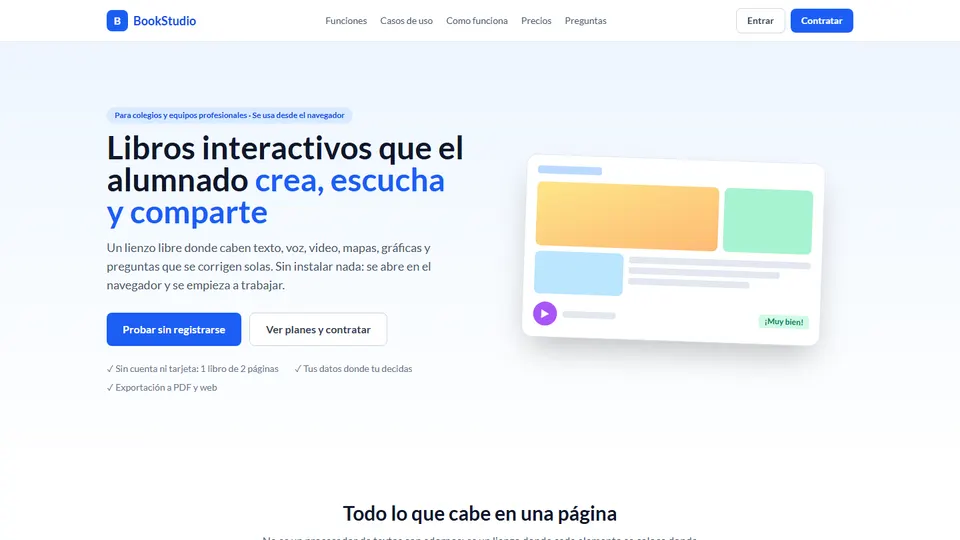
Your students learn more when they produce: when they explain things in their own voice, organize ideas and share what they’ve created. The problem is that much of schoolwork is still trapped in notebooks and static documents. BookStudio is a web platform for creating interactive books with voice, video, maps, charts and questions that grade themselves, and it also lets you hand out material, give a grade with comments and keep track of each student’s work.
In this article I explain what BookStudio is, what problem it solves and what its features are. The heart of the article is the ideas for using it across different subjects and grade levels, followed by a step-by-step guide and a few precautions.
What is BookStudio?
BookStudio is an interactive book platform from Grupo Logic that runs in the browser, with nothing to install. It offers a free-form canvas, not a word processor with decorations: each element goes wherever it makes sense. A single page can hold text, images, audio recorded by the student, video, maps, charts, formulas and self-grading questions.
It’s used both by teachers, to create material, and by students, to build their own books. Younger children log in with a QR code, no email or password needed; everyone else uses their school email.
What problem does it solve?
There are two very familiar pain points. First: students’ work usually ends up in formats you can’t listen to, explore or interact with. Second: reviewing, grading and tracking that work across several different tools takes time we just don’t have.
BookStudio brings both together. Students create, listen and share on a single canvas; you hand out the material, give a grade with a comment and know how much each student has worked, all in one place.
Key features
- Free-form canvas. Text, images, shapes, icons and drawings wherever they make sense: 26 shapes, 2,048 icons, emojis and 17 fonts chosen for readability, including OpenDyslexic.
- Voice, photo and video. Recorded right from the browser with the computer’s camera and microphone. Audio clips are inserted as listening points in the color you choose.
- Self-grading questions. Single answer, multiple answers or ordering, with text and images and a celebration animation for correct answers. The answer is checked on the server, so nobody can peek.
- Charts, formulas and maps. Six chart types with editable data, LaTeX formulas and OpenStreetMap maps inside the document, no screenshots required.
- Free media and embeds. A search tool for Creative Commons–licensed images and sounds with automatic attribution, plus embedded content from YouTube, Google, Canva or Genially.
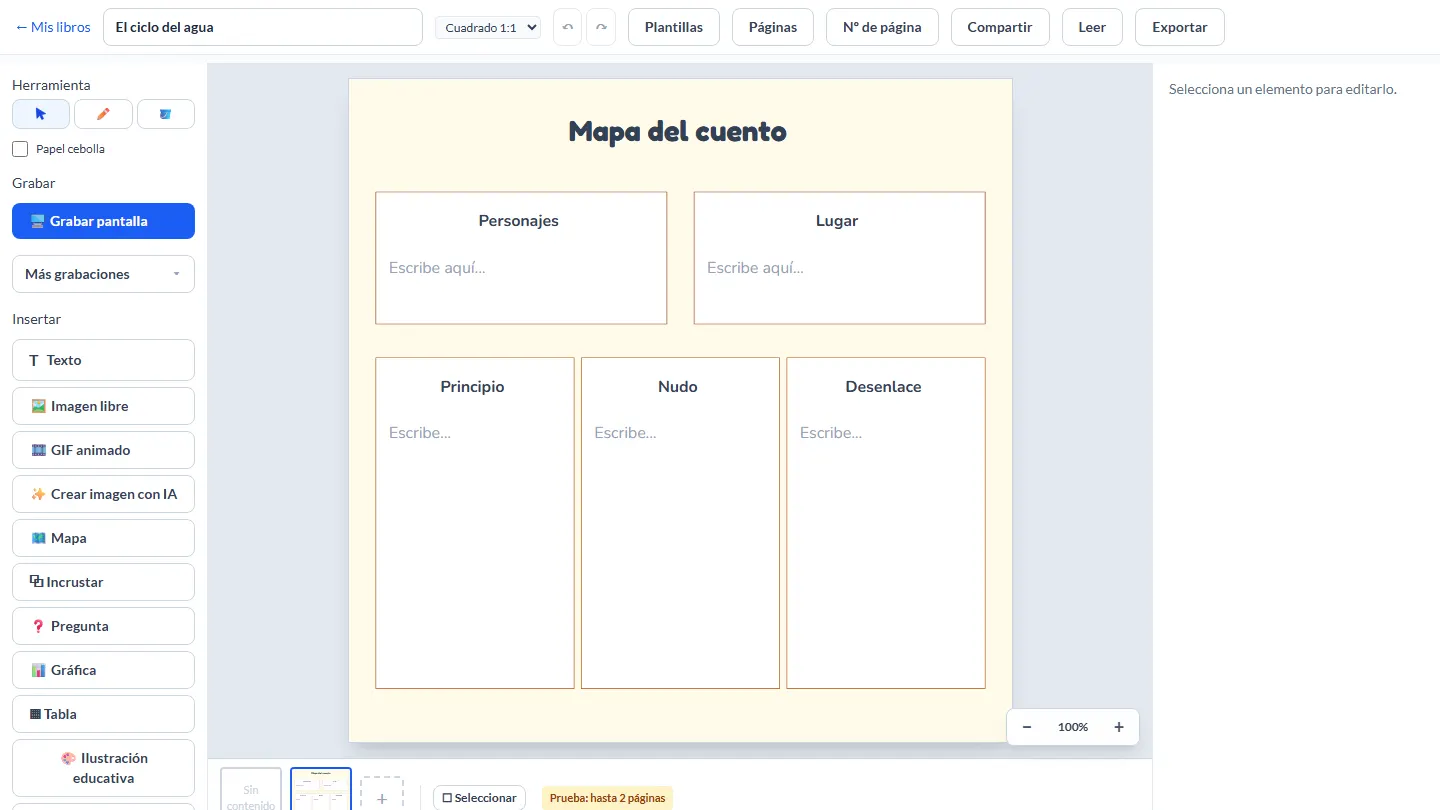
- Templates and graphic organizers. 24 templates, including Venn diagrams, KWL charts, story maps, fishbone diagrams and Cornell notes.
- Grading and tracking. A grade and comment per book as many times as needed, a class grid with each student’s average, and a log of how many times and for how long each student worked.
- Distribution and group work. You send a page or a whole book to the class, and each student gets their own editable copy. You can also mark a book as collaborative so the whole group contributes to the same document.
- Sharing and exporting. Read-only links, public or restricted to the group and revocable with one click. Every book can be exported to PDF or to a standalone, single-file web page.
Ideas for using BookStudio in the classroom
The grade levels are just a guide: what matters is that students produce, not just consume.
1. Illustrated stories narrated in their own voice
Grades 2 to 5 (primary) · Language arts. Each student writes a short story, illustrates it with drawings, icons or freely licensed images, and records their voice reading each page. Before writing, they use the story map template to define the characters, setting, beginning, middle and end. Reading aloud and then listening to themselves builds reading fluency in a way a notebook can’t.
2. A reading journal with audio and self-assessment
Grades 6 to 9 · Language arts and the school reading program. While reading a novel, students summarize each chapter, record an audio clip with their opinion and create two or three self-grading questions for their classmates. You grade the journal several times during the term, with a grade and comment, and they see your feedback inside their own book.
3. An interactive social studies atlas with maps
Grades 6 to 8 · Social studies. Using OpenStreetMap, they build an atlas of their town, of Colombia’s natural regions or of the route of a historical process. Each page combines a map, an explanatory text, a listening point with their voice and a check-for-understanding question. That way they connect geography with their everyday lives.
4. A lab report with real data charts
Grades 8 to 10 · Science and statistics. After an experiment, such as seed germination or heating water, they enter their data into one of the six editable charts, explain their conclusions and add a photo or a short video of the setup. Since the data stays editable, they can correct and compare results across groups.
5. A math and physics guide with LaTeX
Grades 9 to 11 · Math and physics. Create a review guide on linear functions or uniformly accelerated motion: a brief explanation, LaTeX formulas, a chart with data and self-grading questions at the end of each section. You can also flip the challenge and have each team build the guide for one topic for the rest of the class.
6. An illustrated English dictionary with pronunciation
Primary and grades 6 to 8 · English as a foreign language. Each student creates themed vocabulary pages (food, jobs, places in the city) with an image, the word, an example sentence and their own voice pronouncing it. With ordering questions, they put together exercises for their classmates to rebuild sentences. Hearing their own recordings helps them improve their pronunciation and lose their fear of speaking.
7. A collaborative project across several classes
Any level · Cross-curricular projects. You can build groups with students from several classes, for example five from 10A, six from 10B and nine from 10C, and create a collaborative book they all contribute to. Use it for the school’s environmental project, a science fair or a record of a field trip, and share it with families through a read-only link.
8. Graphic organizers for thinking before writing
Grades 4 to 11 · All subjects. At the start of a unit, hand out to the class a page with the KWL template (what I know, what I want to know, what I learned), and each student works on their own copy. In ethics or citizenship classes, the fishbone diagram helps analyze the causes of a problem at school; the Venn diagram is useful for comparing two eras, two cells or two texts.
9. Accessible material for inclusion
All grades · With support from the school counseling team. Accessibility comes built in: dyslexia-friendly fonts such as OpenDyslexic, a minimum readable size and audio. Prepare guides with explanations recorded in your own voice for students with reading difficulties, and let some of them answer with audio or images instead of only text. It’s a practical way to apply Universal Design for Learning.
10. An evidence portfolio for the term
Grades 6 to 11 · Any subject. Instead of handing in separate assignments, each student builds a portfolio book with their best work and an audio reflection. The log shows you how much time they actually spent, because sessions close automatically after a few minutes of inactivity, and the grading grid gives you an overview of the class.
If your students already make infographics, this is a good next step: start from what we covered in how to make an infographic in PowerPoint (in Spanish) and take it to a format with voice and questions.
How to get started, step by step
- Try it without signing up. You can open the editor with no account and no card, limited to one two-page book.
- Create a sample book. Start from scratch or with one of the 24 templates, and practice inserting an audio clip, a chart and a question.
- Choose a plan with your school. There are options for a single teacher, for a school or for an entire institution.
- Invite your group with a link, a QR code or by selecting students class by class.
- Hand out the first activity to the whole class so each student works on their own copy.
- Grade and publish. Give a grade with your comment, share the link or export to PDF.
Good practices and precautions
- Privacy first. Before recording the voices and videos of minors, inform families according to your school’s policy. Use links restricted to the group when faces or voices appear, and revoke them when they’re no longer needed.
- Academic honesty and copyright. Teach students to use the Creative Commons media search and to respect attribution. If your school uses AI tools to generate text or images, agree on when they’re allowed and how their use is disclosed.
- Accessibility by design. Choose readable fonts, add audio to long texts and avoid overloaded pages.
- Connectivity. Since it runs in the browser, check the lab’s connection before a recording session and have a plan B.
- Your books are yours. Export the best work to PDF or to a web page: they open with a double click, without the platform.
To choose wisely, review the pros and cons of technology tools for teachers (in Spanish) and the AI for teachers section. If you’re interested in planning with AI, also read about EduNova.
Frequently asked questions
Can you try BookStudio before buying?
Yes. You can open the full editor without signing up, limited to one two-page book.
What do students need to log in?
Just a browser. Younger children log in with a QR code, no email or password needed; everyone else uses their school email.
Where is student data stored?
On the service’s servers, encrypted in transit and backed up daily, with no ad tracking and no sharing of data with third parties.
Can we take our books with us if we stop using the service?
Yes. Each book can be exported to PDF or to a single-file web page, with its images and navigation, that opens with a double click without the platform.
Can several people edit the same book?
Yes. A book marked as collaborative accepts contributions from the whole group. Other people’s changes appear when you reload the page.
Conclusion
BookStudio turns schoolwork into something you can read, listen to, explore and share, and it saves you the hassle of reviewing across several tools. Start with a single activity, like a reading journal or a lab report, and let your students discover everything that fits on a page.
Learn more about BookStudio on Grupo Logic’s official page and start creating your first interactive book.
Prefer to have it ready?
More guides in AI and technology for teachers