
Sending emails without macros is something every Microsoft Excel user dreams of. Sometimes you simply need to send the information gathered in different cells, and we've always wished there were a function that could do it. Well, in this post you'll learn how. I'll start with the video, and then you can go through the formulas in detail in this article.

Before we go on: if you've already watched the video, you'll have noticed that we need both Excel and Outlook to send emails without macros, along with the connection we can set up between these two applications. This means you must have both tools installed and configured; without Outlook you won't be able to carry out this process.
Important
Outlook is an email client, and it can be configured with any type of account, for example Gmail, Hotmail or Outlook accounts, and even business accounts on any domain.
Send Emails WITHOUT Macros with the HYPERLINK() Function
Before we talk about how to send emails without macros, we need to be clear on how the HYPERLINK function (HIPERVINCULO in Spanish Excel) works and how it's used.
The HYPERLINK function will help us send emails without macros because it lets us connect any link to a friendly text. Its syntax is as follows:
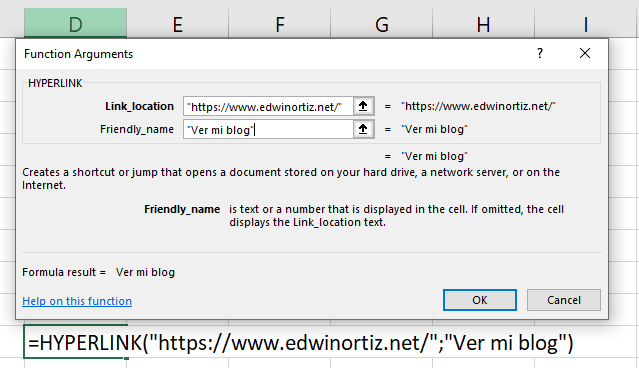
Unlike the post where we covered how to send bulk emails from Excel, here we'll only use this function, adding a few parameters or commands to connect with Outlook.
Parameters for Sending Emails Without Macros from Excel
First, it's important to remember that we're going to connect Microsoft Excel and Outlook to send emails without macros using a few very basic parameters, which you can even get through the standard procedure for creating a hyperlink. However, that procedure is very limited: it can only send an email to a single recipient with a subject, leaving the body of the email for the user to type in afterwards.
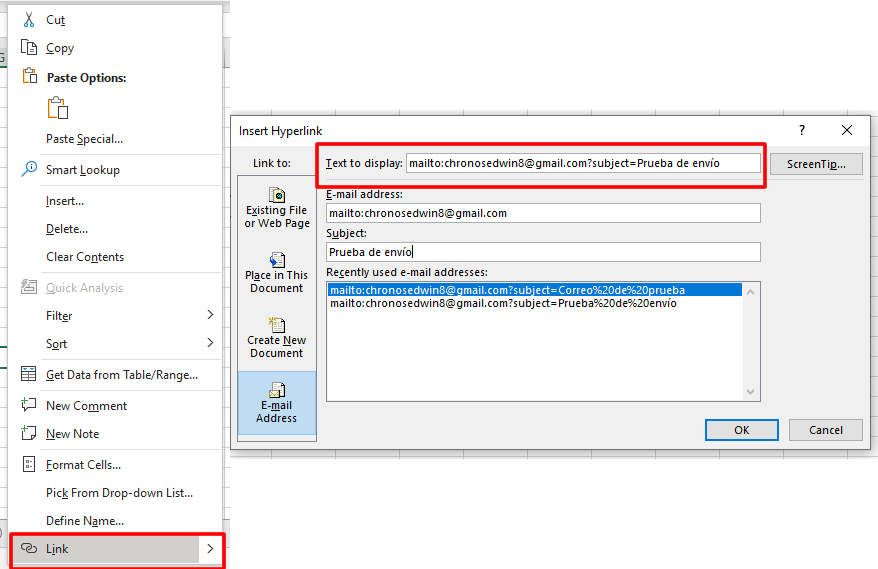
In the image above you can see that there are two commands for creating a link with a recipient address (mailto:) and a subject (?subject=). The problem is that this link can't pull information from cells, so every time you wanted to use it you'd have to copy the recipient address and the subject. It's better to send it directly, so what we'll do is use those commands to our advantage, combine them with the HYPERLINK function and shape them to fit our needs.
The HYPERLINK Function for Sending Emails from Excel
Remember, if you'd like to get the Premium template for sending bulk emails with attachments, you can go straight to the store or to the recommended products below.


Mail Merge and Save as Separate Documents
Improved version with export to individual PDF files with different names. Saving each record of a mail…
$30
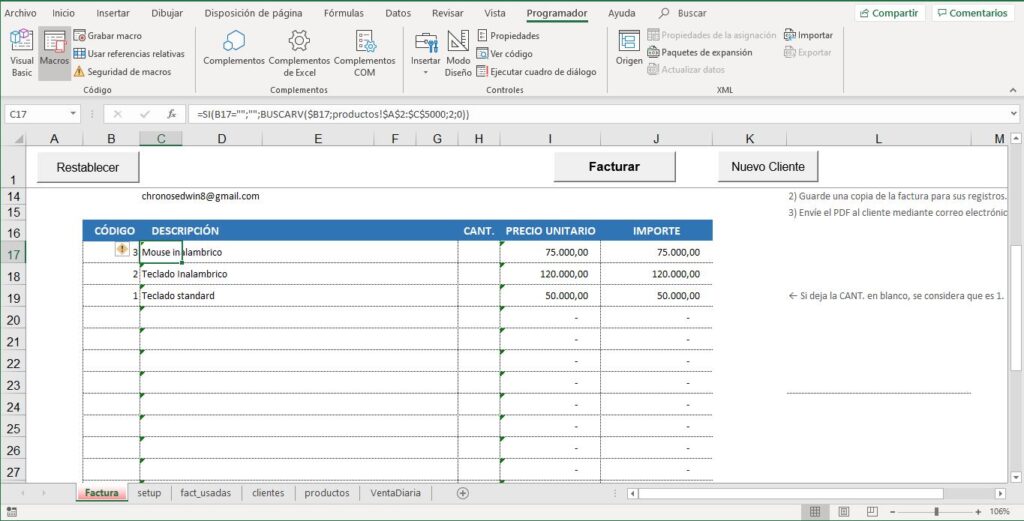
Invoice with Email Delivery to the Customer
Premium invoice with automatic email delivery to the customer
$20
Earlier we said we'd use the basic commands combined with the HYPERLINK function to send the email, but this time we'll make sure the information needed to send it is taken from the cells in our Excel sheets or workbooks.
Next, we'll build a small template for the example.
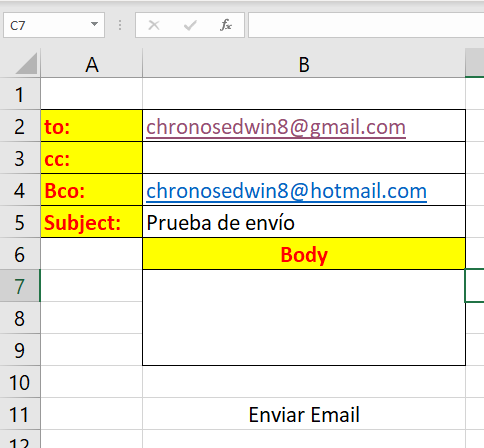
The idea is to use this template with our function so you can learn how it works.
| Field | Command |
| To: (Para:) | "mailto:"&Cell&" |
| Subject: (Asunto:) | "?subject="&Cell& |
| CC (carbon copy) | "&cc="&Cell& |
| BCC (blind carbon copy) | "&bcc="&Cell& |
| Email body | "&body="&Cell |
Now that each command is clear, along with how it should be written, all that's left is to bring them together in the HYPERLINK function, which looks like this:
=HYPERLINK("mailto:"&B2&"?subject="&B5&"&cc="&B3&"&bcc="&B4&"&body="&B7;"Enviar mail")Note that the text "Enviar mail" ("Send email") at the end of the function is the HYPERLINK function's friendly name, which is why the "&body="&Cell command doesn't end with the & symbol like the others.
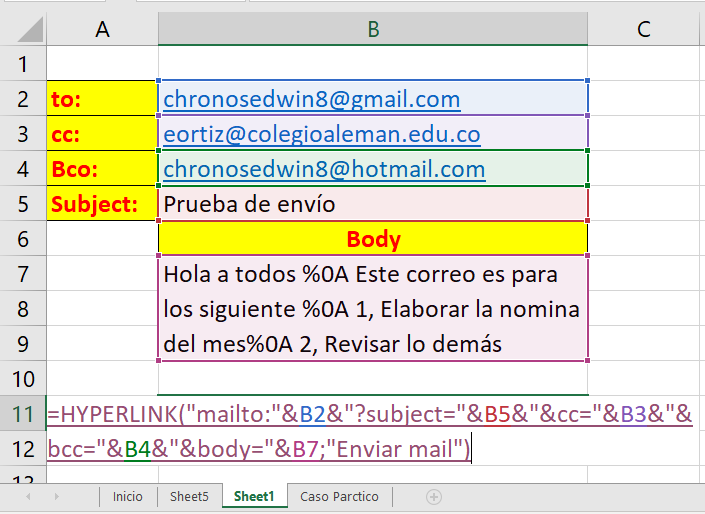
This approach is very handy when we need to combine cells, but there's one problem: this method can only concatenate 255 characters, formulas included. So keep in mind that if you don't need BCC or CC, it's better to leave those commands out, because using them spends characters on those extra addresses, characters you could use for the body of the email instead.
On the other hand, if you'd like to do something similar with Microsoft Word, I suggest watching the following video, which shows you how to connect Excel and Outlook with the editing power of Microsoft Word.
Prefer to have it ready?
More guides in Excel automation for office work