.jpg)
How do you create QR codes that never expire? For some people the question makes no sense, but expiring QR codes are real, and I am going to show you how to create them with no expiry date, using a tool found on most computers in the world.
How to create QR codes that never expire is a strange question, but many websites that offer free QR code creation don't tell you up front that the QR codes made on their site have an expiry date.
Do QR codes really expire?
QR codes do not "expire".
All a QR code does is hold a small piece of text. Usually that text is a website URL, and most phones and other mobile devices will scan a QR code and, if it contains a web address, go straight to it.
How do expiring QR codes work?
When we ask ourselves how to create QR codes that never expire, we need to understand that the codes that do expire are simply built with a different URL from the one you provided.
The process is very simple and is known as redirection. It relies on URL shorteners, which take one URL and replace it with another that has countless properties the creator can manage. One of those properties is the link's expiry date; others include the redirection itself and even visit counters.
An example of this service is the one Twitter uses: when we enter a URL, it is immediately converted into a new URL made up of Twitter's root domain followed by a unique series of numbers and letters. This makes it possible to track statistics for that link, in other words, the number of times people have visited the URL you provided.

In the image above you can see how my blog's URL is replaced by one with Twitter's structure.
How to create QR codes that never expire using Excel
Excel is a very powerful tool, but it has no built-in feature for creating QR codes. That is why I am going to show you a solution: a function that can turn the information in Excel cells into a working QR graphic.
To create QR codes in Excel we need to use some Google tools that belong to the Chart API for developers, but this time we are going to use it to generate the graphic inside Excel.
Using the API is very easy; all you need is the following URL:
http://chart.apis.google.com/chart?cht=qr&chs=300x300&chl= Edwin Ortiz
Replace the characters after the equals sign (=), paste it into any browser and, as if by magic, you get a QR code ready to use. Below is a video (click the image) where I explain how to use it in detail.

How to create QR codes that never expire using macros
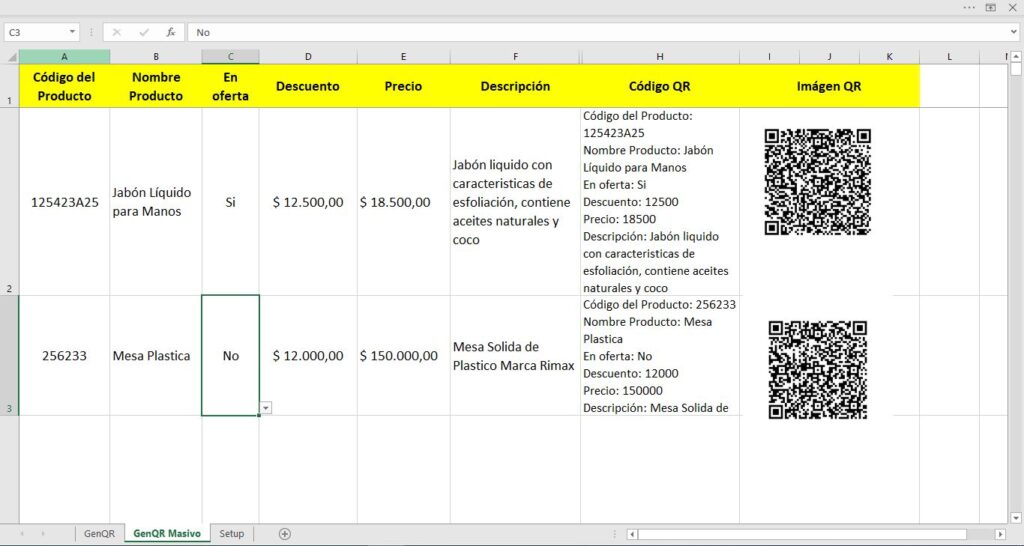
Sometimes we need to create QR codes in bulk to make product labels, ID cards and more, which will later be read with a phone and stored in another Excel sheet. For that we can use the following function, which works together with other Excel functions and, in the end, gives you QR codes in Excel as easily as using the most basic function.
Below you will find 3 templates from my shop, the explanatory video (click the image) on how to create QR codes in bulk in Excel, and the code used in the video.


Mail Merge and Save as Separate Documents
Improved version with export to individual PDF files with different names. Saving each record of a mail…
$30
Bulk QR Code Generator
The Bulk QR Code Generator for products is a simple solution for self-service stores that want their…
$15
Prefer to have it ready?
More guides in Excel automation for office work