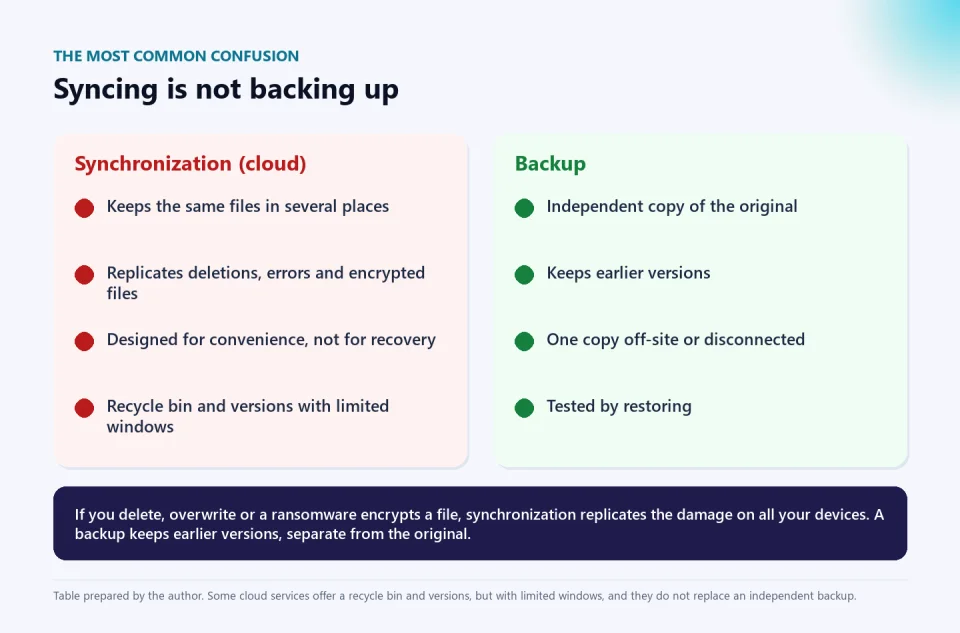
"Relax, everything is in the cloud." It is the phrase I hear most before a data loss. A shared folder is deleted by mistake, a virus encrypts the files on the computer, someone overwrites the year's spreadsheet with an empty version. And the cloud, doing its job, replicates the damage on every device. Syncing is not backing up, and confusing the two is one of the most common causes of data loss in small businesses, schools and families.
In this article I debunk seven myths, explain how synchronization, redundancy, backup and disaster recovery differ, and give you a simple strategy and a script to check that a restore works. Data checked on October 9, 2026.
Summary. The cloud synchronizes; a backup is an independent copy, with versions, out of reach of the original damage and tested. The 3-2-1 rule (three copies, two types of media, one off-site) is the starting point; and the only proof that a backup works is restoring it. Run a recovery test today with one file and one folder.
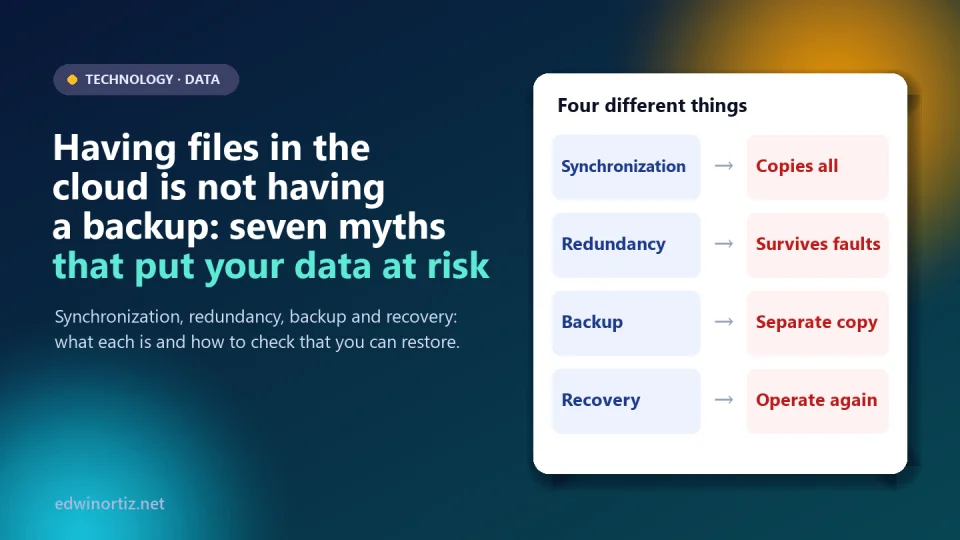
Four concepts that get confused
| Concept | What it does | What it does NOT do |
|---|---|---|
| Synchronization (OneDrive, Google Drive, Dropbox) | Keeps the same files on several devices and in the cloud. | It does not protect you from deletions, errors or encryption: it replicates them. |
| Redundancy (RAID, mirrored disk) | Keeps the system running if one disk fails. | It does not protect against deletions, viruses or errors: it copies the damage too. |
| Backup | An independent copy with versions that lets you go back to an earlier point. | It is useless if it was never tested or if it is within the attacker's reach. |
| Disaster recovery | The plan to operate again: what is restored, in what order, by whom and how fast. | It does not exist if there are only copies and nobody knows how to use them. |
The seven myths
Myth 1: "It's in the cloud, so it's backed up"
False. Synchronization replicates changes, including bad ones. If you delete a folder, it disappears on all your machines; if ransomware encrypts your local files, the encrypted versions sync. Some services offer a recycle bin and versions, and that helps, but it is a safety net with deadlines, not a backup.
Myth 2: "If I delete it by mistake, I can always recover it"
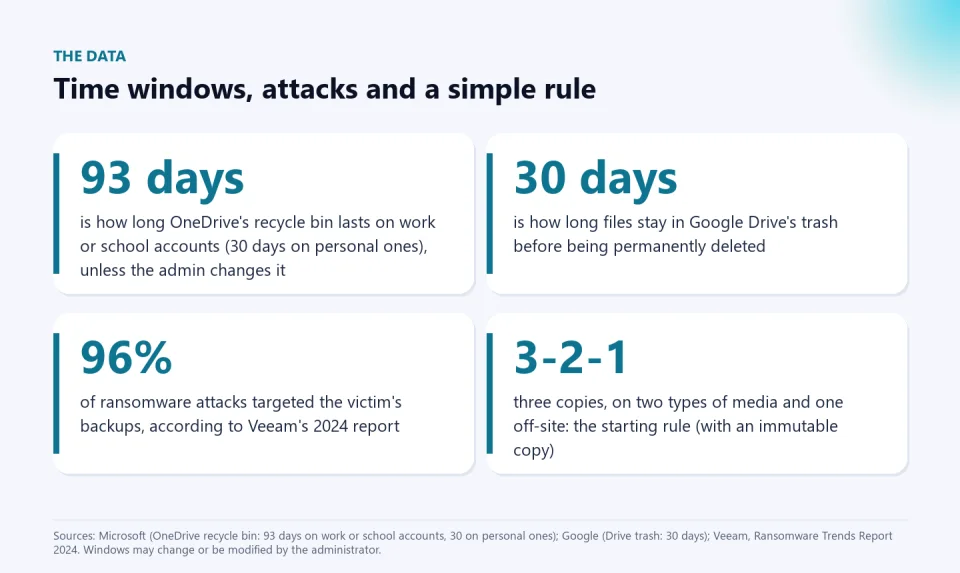
It depends on the window. According to Microsoft, OneDrive's recycle bin keeps deleted items for up to 93 days on work or school accounts (unless the administrator changes it) and up to 30 days on personal accounts; and the Restore your OneDrive feature lets you undo changes from up to 30 days ago, with a Microsoft 365 subscription on personal accounts. Google, for its part, automatically deletes files in the Drive trash after 30 days. After the window, or if the bin is emptied, there is no way to recover it.
Myth 3: "The provider takes care of my data"
Microsoft says so in its consumer Services Agreement: it recommends that you regularly back up your content, and an upcoming version of the agreement, published in July 2026 (I could not confirm whether it is already in force), uses stronger language ("we strongly advise you"). Each provider has its own terms, and those of business accounts may differ; the prudent assumption is that the provider protects its infrastructure, and you protect your information. In Colombia, moreover, Law 1581 of 2012 includes a security principle: whoever processes personal data must adopt measures to prevent its loss, tampering or unauthorized access.
Myth 4: "My server has mirrored disks (RAID), so I have a backup"
Redundancy protects against a disk failure, not against a deletion, a human error, a virus or a fire: if a file is corrupted, it is corrupted on both disks. It is availability, not backup.
Myth 5: "An external disk plugged in is enough"
A disk that is always connected is also a target for ransomware. According to Veeam's Ransomware Trends Report 2024, per SDxCentral's summary, 96% of attacks targeted the victims' backup repositories (a survey of more than a thousand security and backup professionals). The defense is to have at least one copy that is disconnected, off-site or immutable.
Myth 6: "My backup says 'completed', so it works"
A "completed" backup only proves the program finished, not that the files can be restored or are intact. Backups that were never tested fail exactly when they are needed most: lost keys, corrupt files, folders that were not included or software that can no longer open the format.
Myth 7: "If something happens, I'll recover quickly"
Recovering takes time, and that time costs. Two questions define your plan: how much information can I afford to lose? (recovery point objective, RPO) and how long can I be without operating? (recovery time objective, RTO). If you have not answered them, you do not know whether your daily or weekly backup is enough.
A simple strategy: 3-2-1 and a test
The 3-2-1 rule is the starting point: three copies of your data (the original and two backups), on two different types of media (for example, your computer and an external disk or the cloud) and one copy off-site (another location, or the cloud). Against ransomware it is recommended to add an immutable or disconnected copy and to verify that it restores without errors (the "3-2-1-1-0" variant). For a small business or a school, a realistic setup is:
- The original on the work computer or server.
- An automatic backup with versions in the cloud, separate from the synchronized folder.
- An external disk that is connected only to back up and then disconnected and stored somewhere else.
- A scheduled restore test (every quarter) and a written list of what is restored first.
The recovery test: how to check that you can restore
This is the practical resource. Follow these steps with one file and one folder, not with everything:
- Choose an important file and a folder with subfolders.
- Restore them from the backup to a different location (for example, another machine or a temporary folder), as if the original did not exist.
- Verify integrity: are all the files there and identical to the original? The script below does it by comparing SHA-256 hashes.
- Open some files with their program (an Excel sheet, a document) to check that they read.
- Time it and write it down: it is your real RTO, not the assumed one.
- Document the procedure and repeat it every quarter.
This PowerShell script compares an original folder with the restored one and reports what is missing, what changed and what is extra. I tested it with a faulty restore (one missing file, one altered and one extra) and it caught all three:
param(
    [Parameter(Mandatory)][string]$Origen,
    [Parameter(Mandatory)][string]$Restaurado
)

function Get-Huellas($raiz) {
    $raiz = (Resolve-Path $raiz).Path.TrimEnd('\')
    $d = @{}
    Get-ChildItem $raiz -Recurse -File | ForEach-Object {
        $d[$_.FullName.Substring($raiz.Length + 1)] = (Get-FileHash $_.FullName -Algorithm SHA256).Hash
    }
    return $d
}

$a = Get-Huellas $Origen
$b = Get-Huellas $Restaurado
$faltan    = @($a.Keys | Where-Object { -not $b.ContainsKey($_) })
$distintos = @($a.Keys | Where-Object { $b.ContainsKey($_) -and $a[$_] -ne $b[$_] })
$sobran    = @($b.Keys | Where-Object { -not $a.ContainsKey($_) })

"Archivos en el origen: $($a.Count) | restaurados: $($b.Count)"
"Faltan: $($faltan.Count) | Distintos (corruptos o modificados): $($distintos.Count) | Sobran: $($sobran.Count)"
$faltan    | ForEach-Object { "  FALTA      $_" }
$distintos | ForEach-Object { "  DISTINTO   $_" }
$sobran    | ForEach-Object { "  SOBRA      $_" }
if ($faltan.Count + $distintos.Count -eq 0) { "RESTAURACION VERIFICADA" } else { "RESTAURACION CON PROBLEMAS: no confies en este respaldo hasta corregirlo" }
You run it like this: .\verificar-restauracion.ps1 -Origen "D:\Data" -Restaurado "E:\RestoreTest" (the messages are in Spanish; "FALTA" means missing, "DISTINTO" means different and "SOBRA" means extra). You can download the script (it is free; review it before running it, like any script you download). If the restore reports "CON PROBLEMAS", that backup is not reliable, and it is better to find out today than on disaster day.
Colombia, Latin America and the world
The Veeam or IBM data are global, but the lesson applies equally here: in Colombia, according to the National Digital Security Strategy as cited by the press, the country was the second most attacked in Latin America in 2025 (I covered it in the article on basic security mistakes), and many small businesses, accounting offices and schools keep the essentials on one computer and in one synchronized folder. For an accountant, the risk is losing the year's books; for a teacher, losing grades, lesson plans and evidence; for a school leader, being unable to run enrollment; for a family, losing the children's photos. Law 1581 reminds us that, where there is personal data, security is an obligation, not just good practice.
Tools to keep your data in order
What today lives in an Excel sheet (attendance, grades, invoices) is exactly what hurts most to lose. The Work or academic attendance list in Excel and the Simple invoice with automatic numbering are files worth including in your backup routine from day one. And the documents you generate in any tool, including mine (AI Exam Generator, PIAR con IA), download and keep them yourself: do not depend on the platform keeping them.
Keep reading: the hidden risk of Excel: audit and version control, AI agents with access to your systems and voice-cloning scams.
Frequently asked questions
Are OneDrive or Google Drive a backup?
Not on their own. They are synchronization with a recycle bin and versions with limited windows. They work as one of the copies, but do not replace an independent backup.
How often should I back up?
It depends on how much information you can afford to lose: if losing a day of work is unacceptable, the backup must be daily or continuous. Define your RPO and RTO and adjust the frequency to those answers.
What is the 3-2-1 rule?
Three copies of your data, on two different types of media, with one copy off-site. Against ransomware it is also recommended to have an immutable or disconnected copy and to test the restore.
How often should I test the restore?
At least every quarter and after any major change to your backup system. A small test (one file and one folder) is far better than none.
Can ransomware also encrypt my backups?
Yes, if they are connected or reachable from the infected machine. That is why a disconnected or immutable copy is recommended, and why attackers go after backups first.
Do your recovery test this week. Pick a file and a folder, restore them to another location and verify with the verification script. Note how long it took and what failed. And if you use Excel for the important things, include your templates in your backup routine.
Food for thought
We pay for insurance on the car, the house and our health, but we treat data backup as an optional luxury done "when there is time". If a file is worth more than the computer it lives on (the company's books, a year of grades, the children's photos), why do we give it less care than an appliance, and who should demand that care of us: the law, the customer or ourselves?
Was this article helpful?
React and share it with someone who might find it useful.
- Like 0
- Insightful 0
- Celebrate 0
- Love 0
- Thought-provoking 0
Prefer to have it ready?
More guides in AI and technology for teachers